How this app works
A screen-by-screen guide to the Activations Database. Each section covers what the screen is for, how to use it, and what to watch out for. Read it end to end, or jump to what you need from the table of contents on the left.
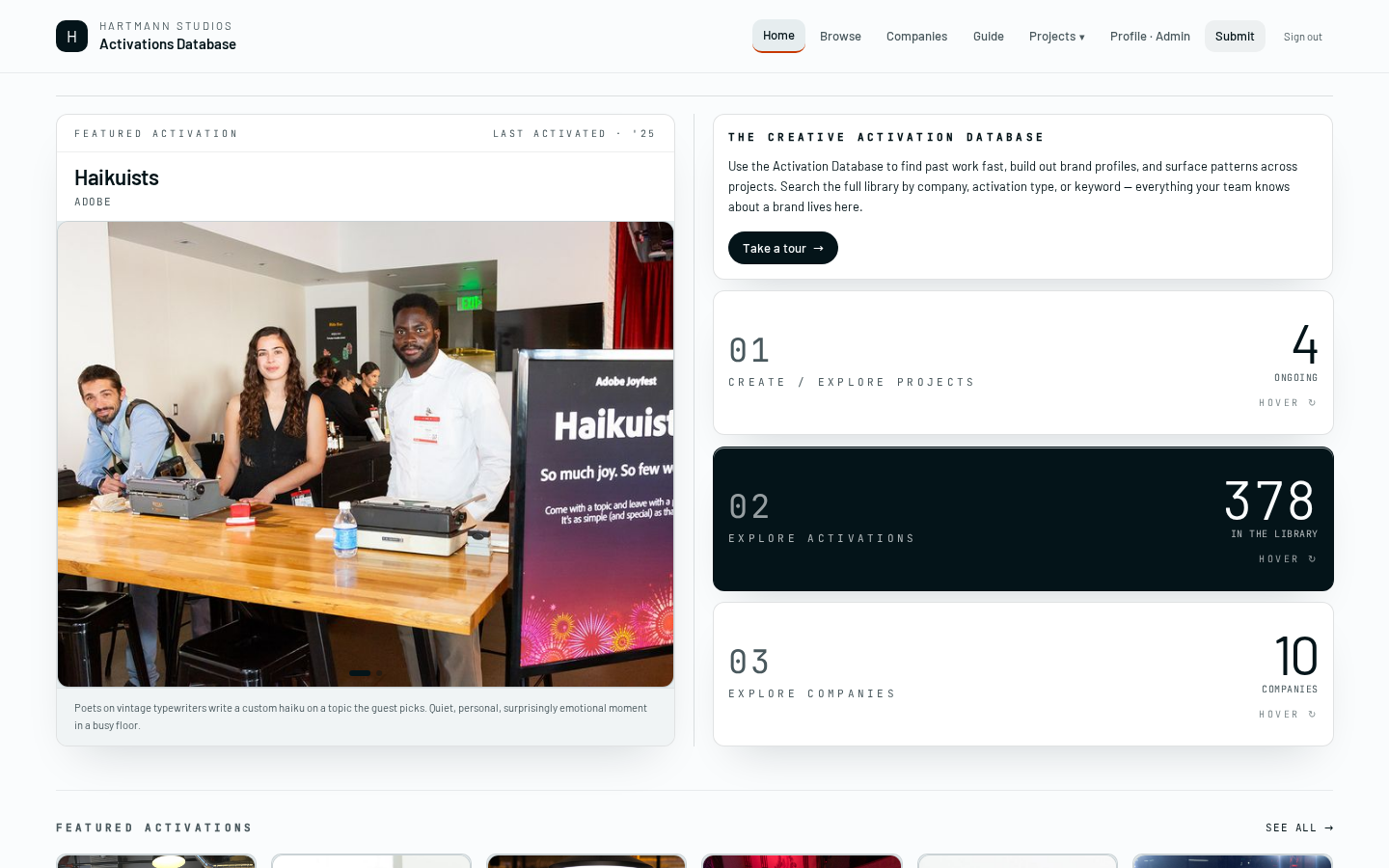
01 · Home page
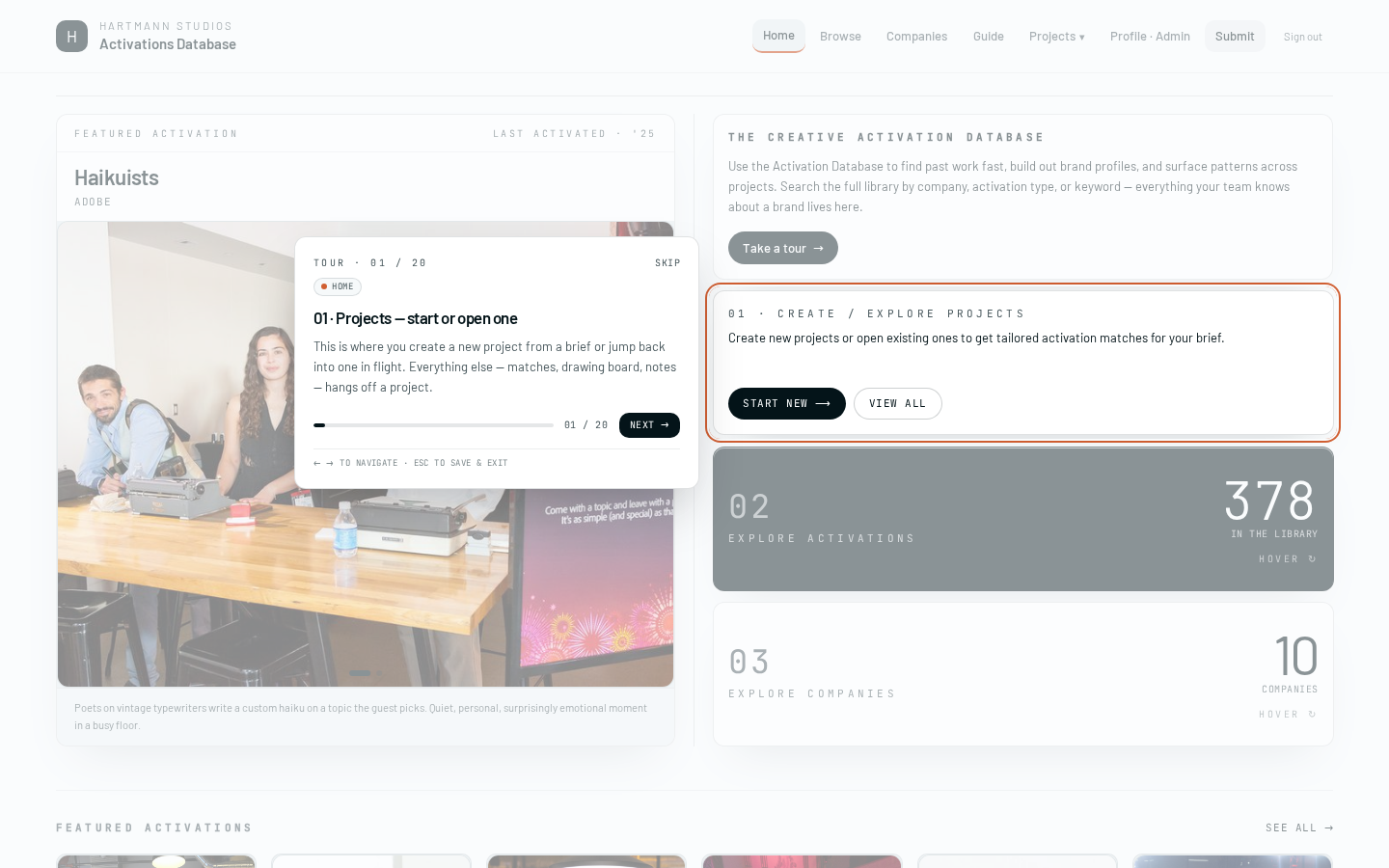
The home page has three tiles: Programs, Explore, and Companies. They are the three ways into the app. Every other page is one click away from here.
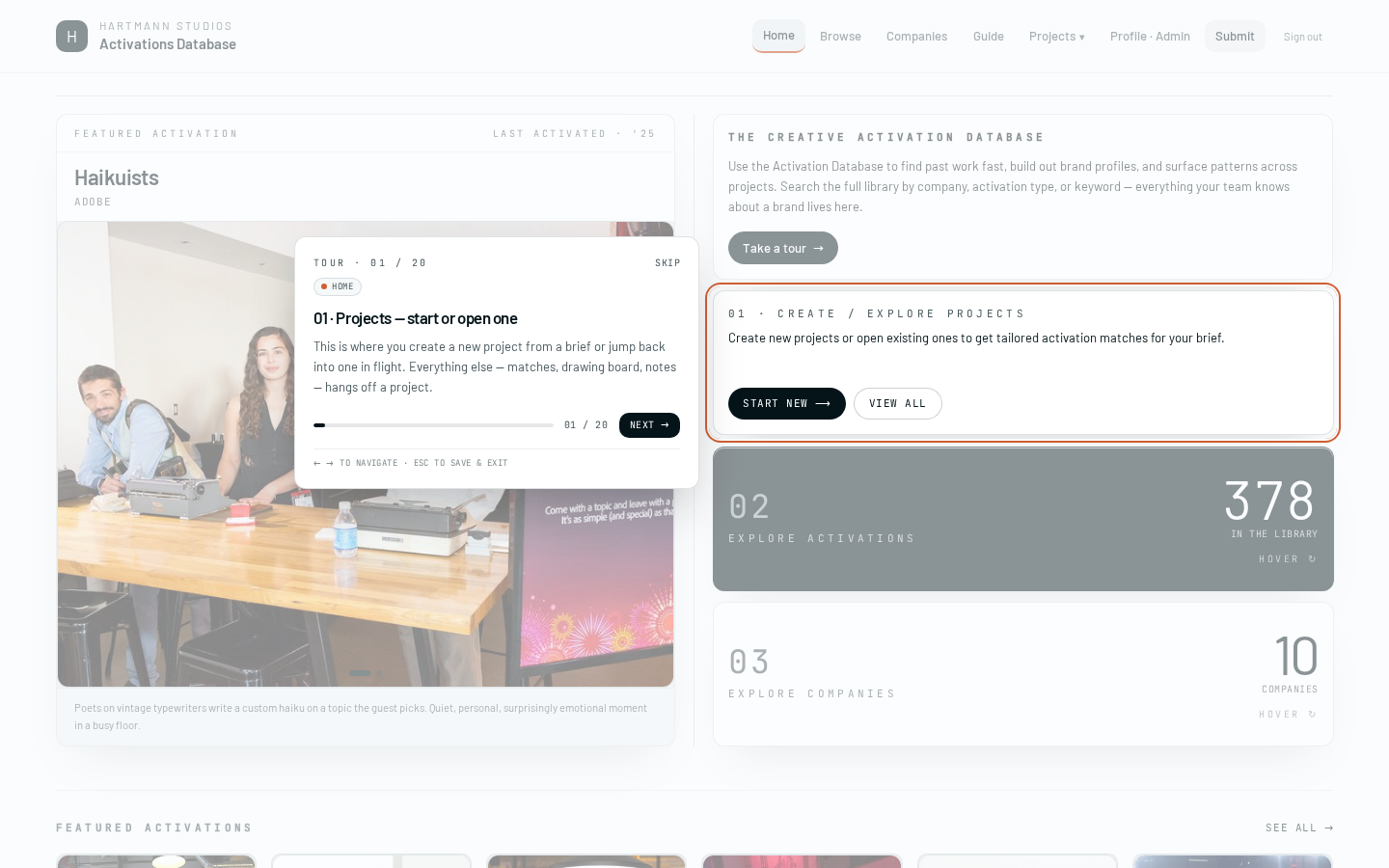
Use it like this:
- Programs — start a new pitch, or open one in flight.
- Explore — browse the full activation library without a program.
- Companies — jump to a brand to see its history and intel.
- It's a launcher, not a dashboard — recent programs live on the Programs page.
02 · Create a program
A program is one pitch. Everything else — matches, board, shortlist, notes — lives inside a program.

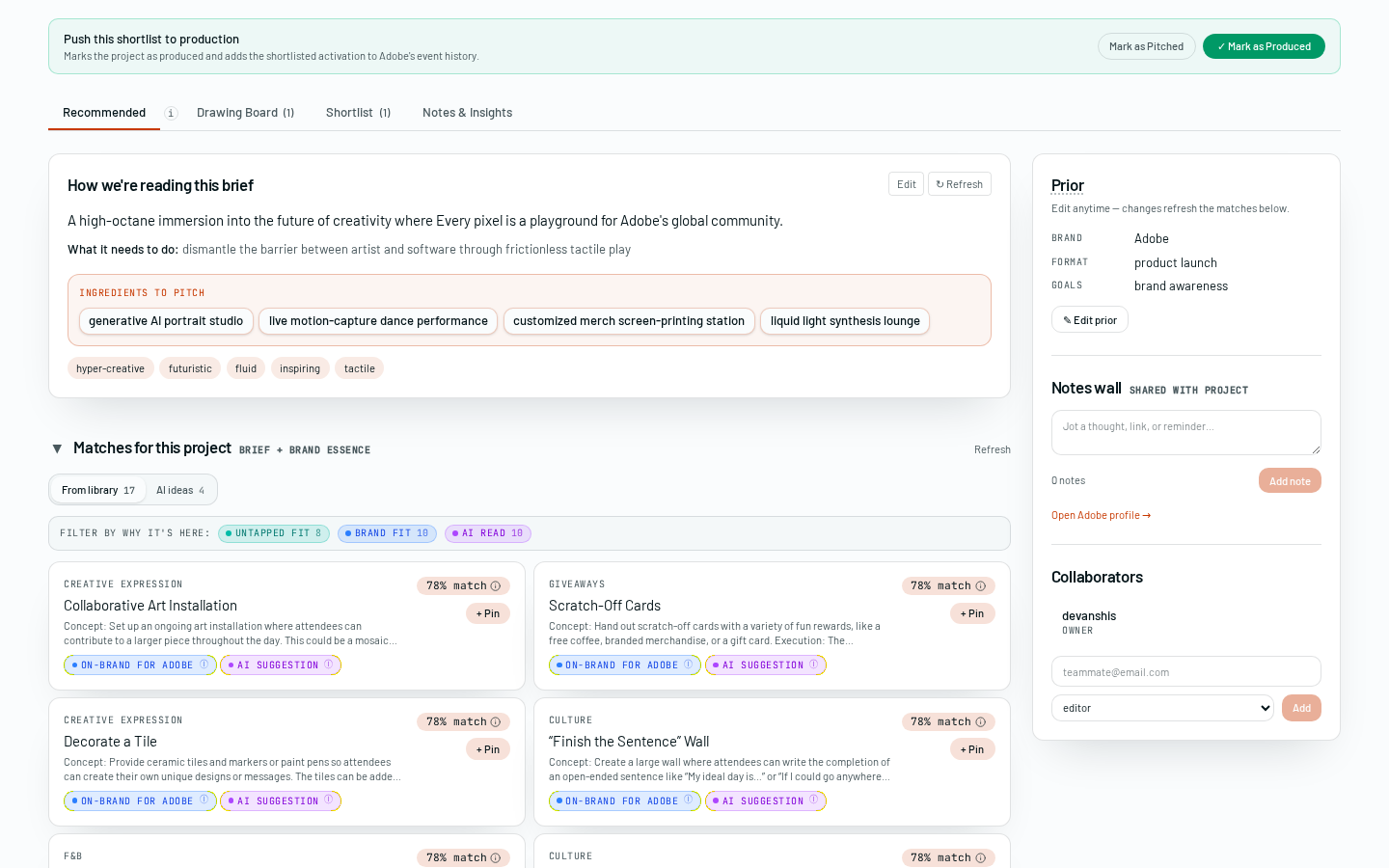
Hit + New program, give it a name, pick the client, and paste the brief. The brief is the important field — it's what the AI reads to rank matches. Event date is optional.
- Two fields are enough to get first matches: name + brief. The rest just fine-tunes ranking.
- You can't change the client after creation without editing the record directly — pick carefully.
03 · The brief panel
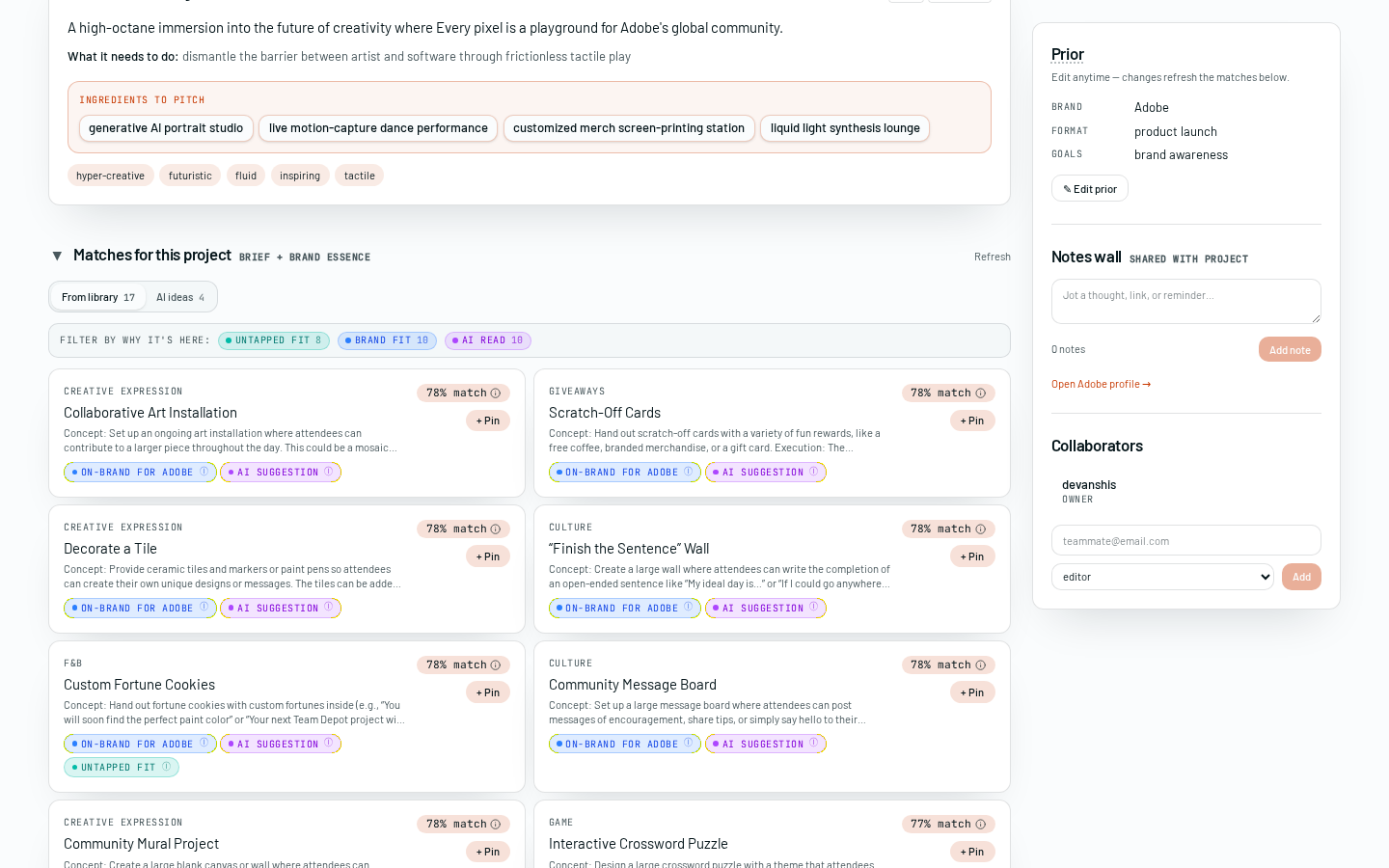
The AI breaks your brief into themes, audience cues, and creative angles. Those become the signals used to rank every match on the page.
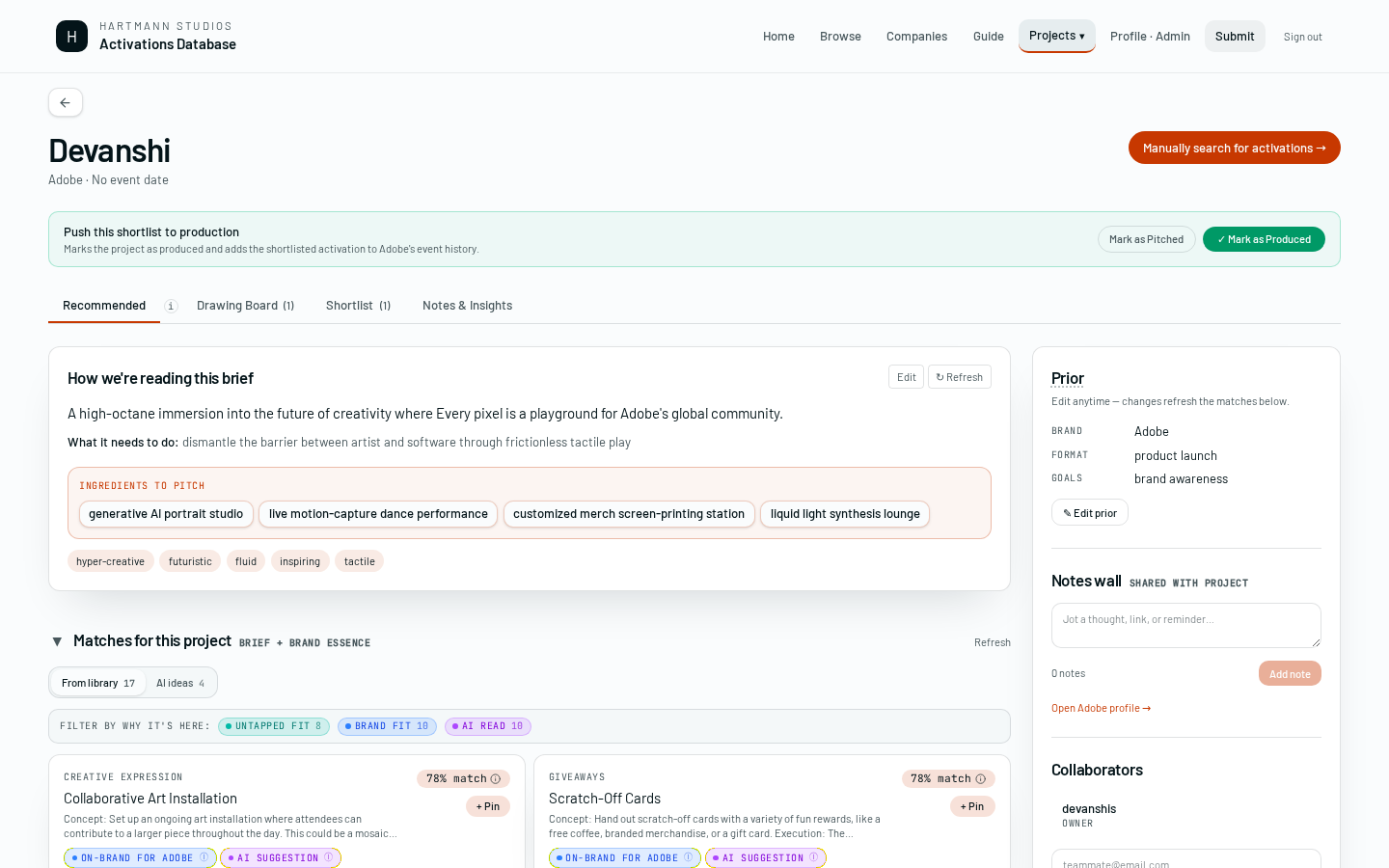
- Read the extracted themes at the top — these are what the AI heard.
- Click Edit brief to fix anything wrong. Matches re-rank instantly on save.
- Add a client's do-not list, tone, or budget notes in the same editor. All of it feeds ranking.
- If the themes look off, the brief is probably too short. Add 1–2 sentences of context and re-save.
- Editing the brief invalidates cached AI ideas. You'll regenerate them from the Recommended tab.
04 · Recommended matches
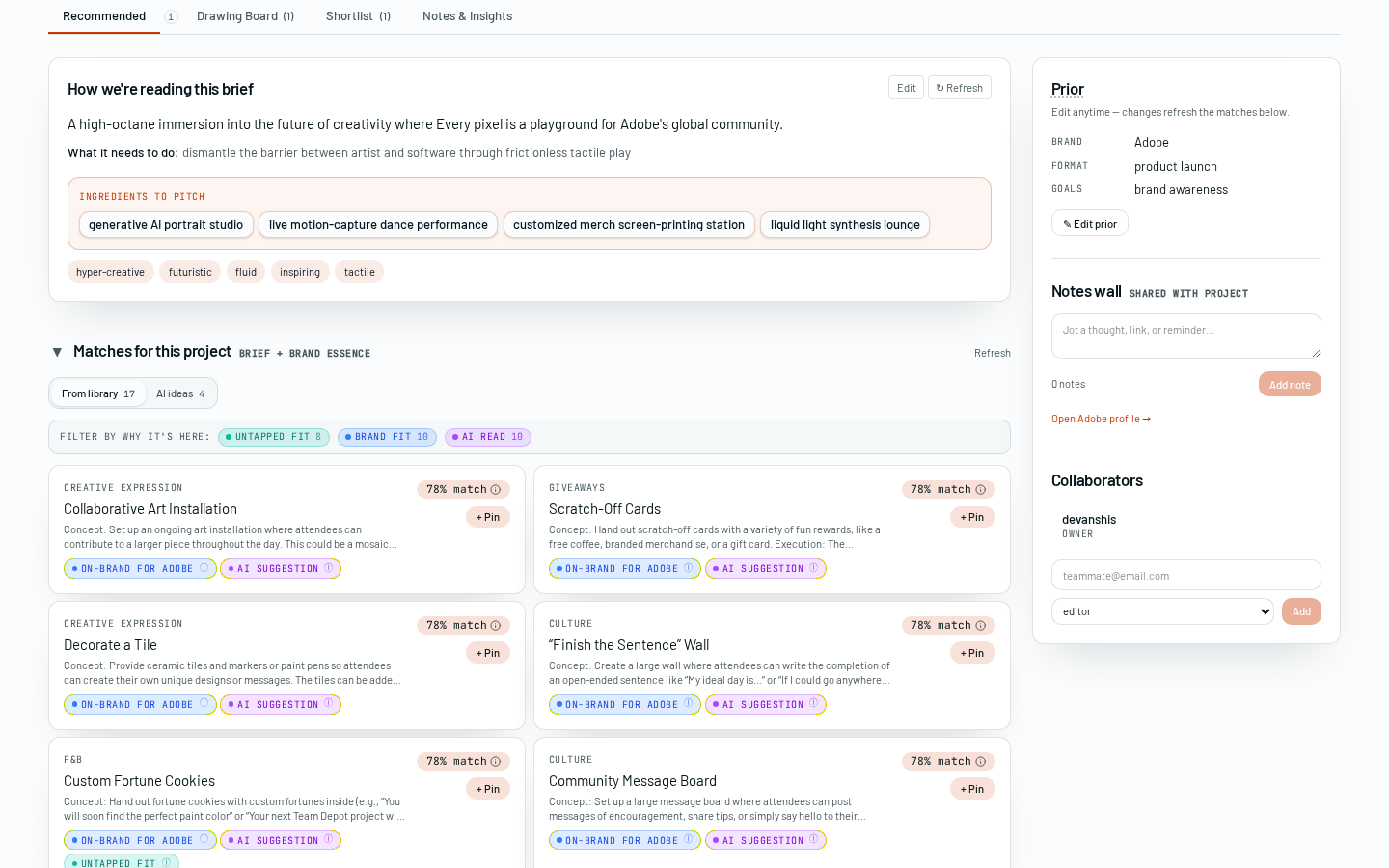
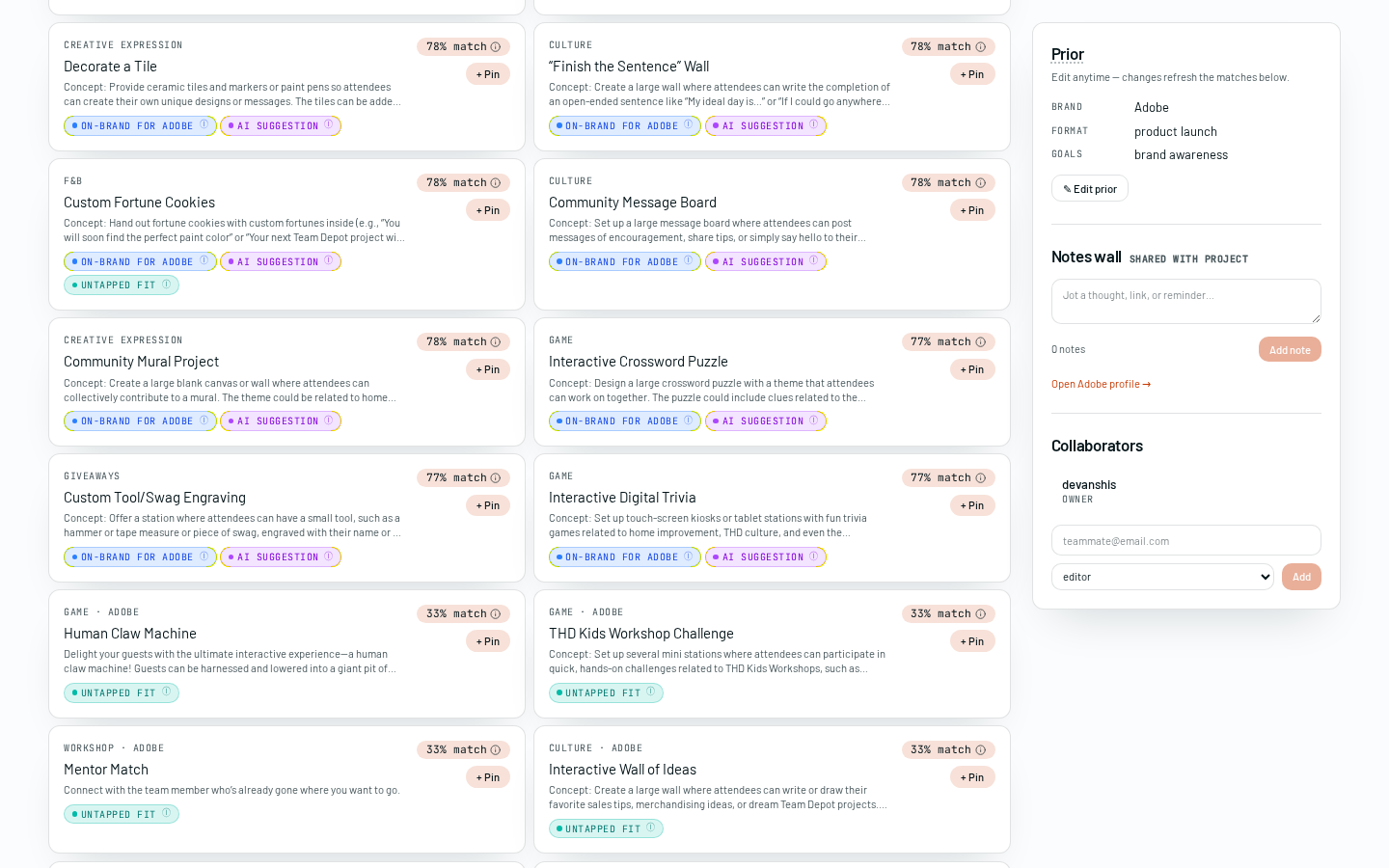
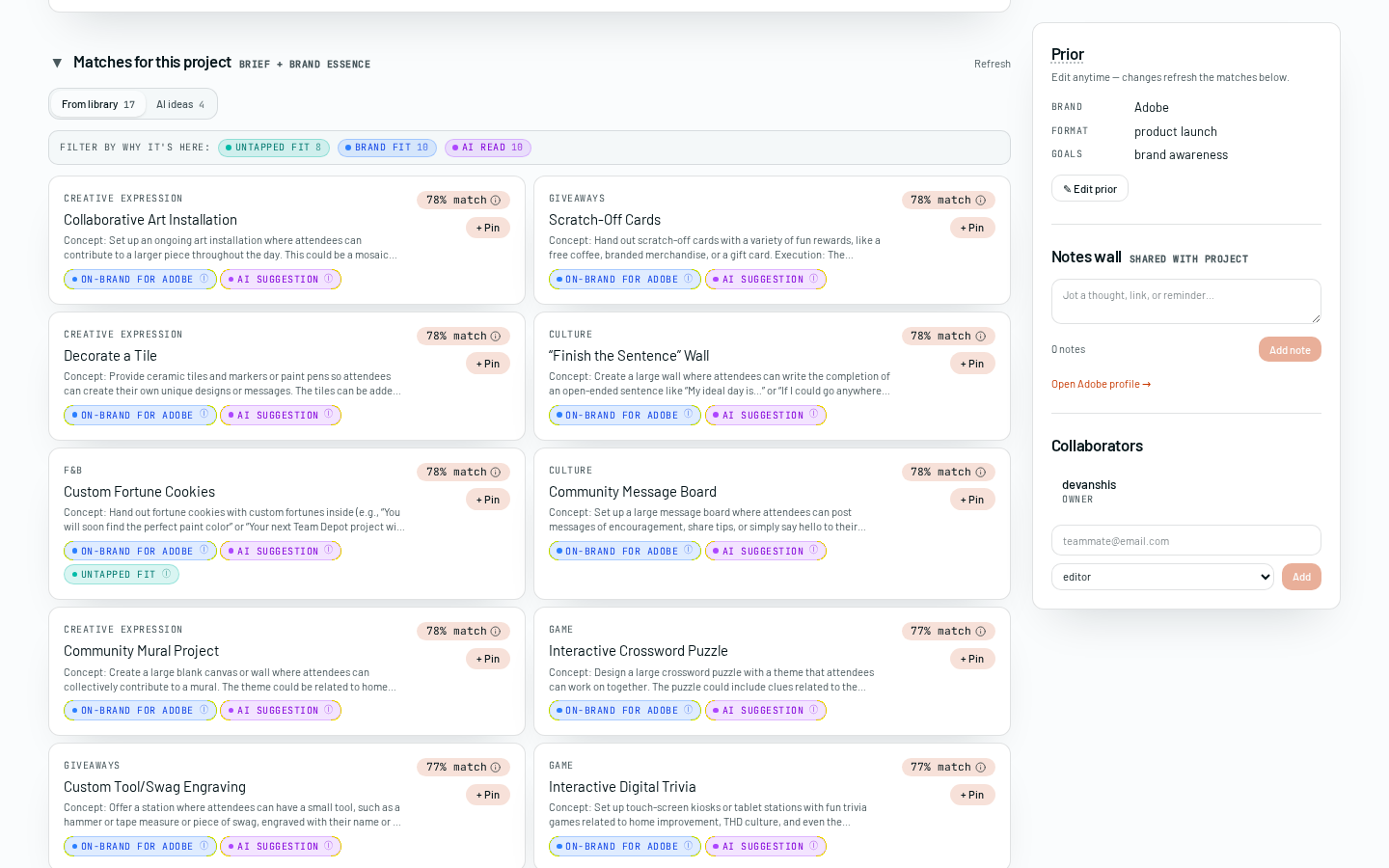
This tab has two sub-tabs: From library (real activations we've done) and AI ideas (fresh concepts generated for this brief).
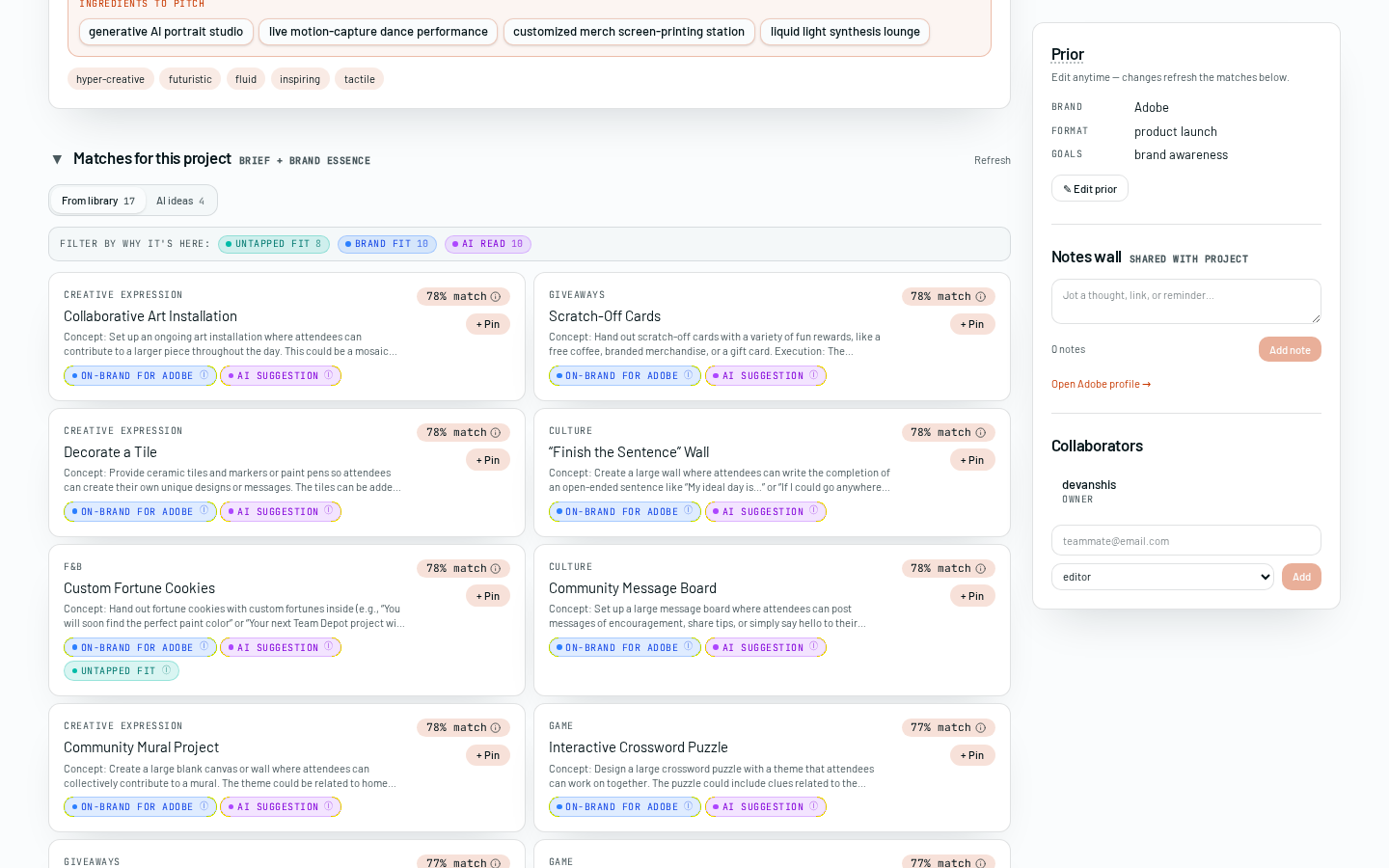
- From library: each card shows a coloured signal chip. Hover it for the full reason it surfaced.
- AI ideas: dark cards. These are inspiration, not real records. They start pending admin approval.
- Use Regenerate to replace the AI ideas. Use + Generate more to append fresh ones along the same lines.
- AI ideas cost money. See section 33 for the daily/monthly budget ceiling.
- Library matches never disappear on their own. AI ideas can be rejected by admins — see section 34.
Under the hood
Ranking combines: brief semantics (embedding cosine), brand history (produced > pitched), creative essence tags, and explicit rules (do-not list, budget band). See src/lib/knowledge/match-scoring.md for the exact weights.
05 · Pin to the drawing board
Pinning is how a match becomes a candidate — nothing is committed yet. Click + Pin on any card and it moves to the Drawing board tab; Undo reverses it.
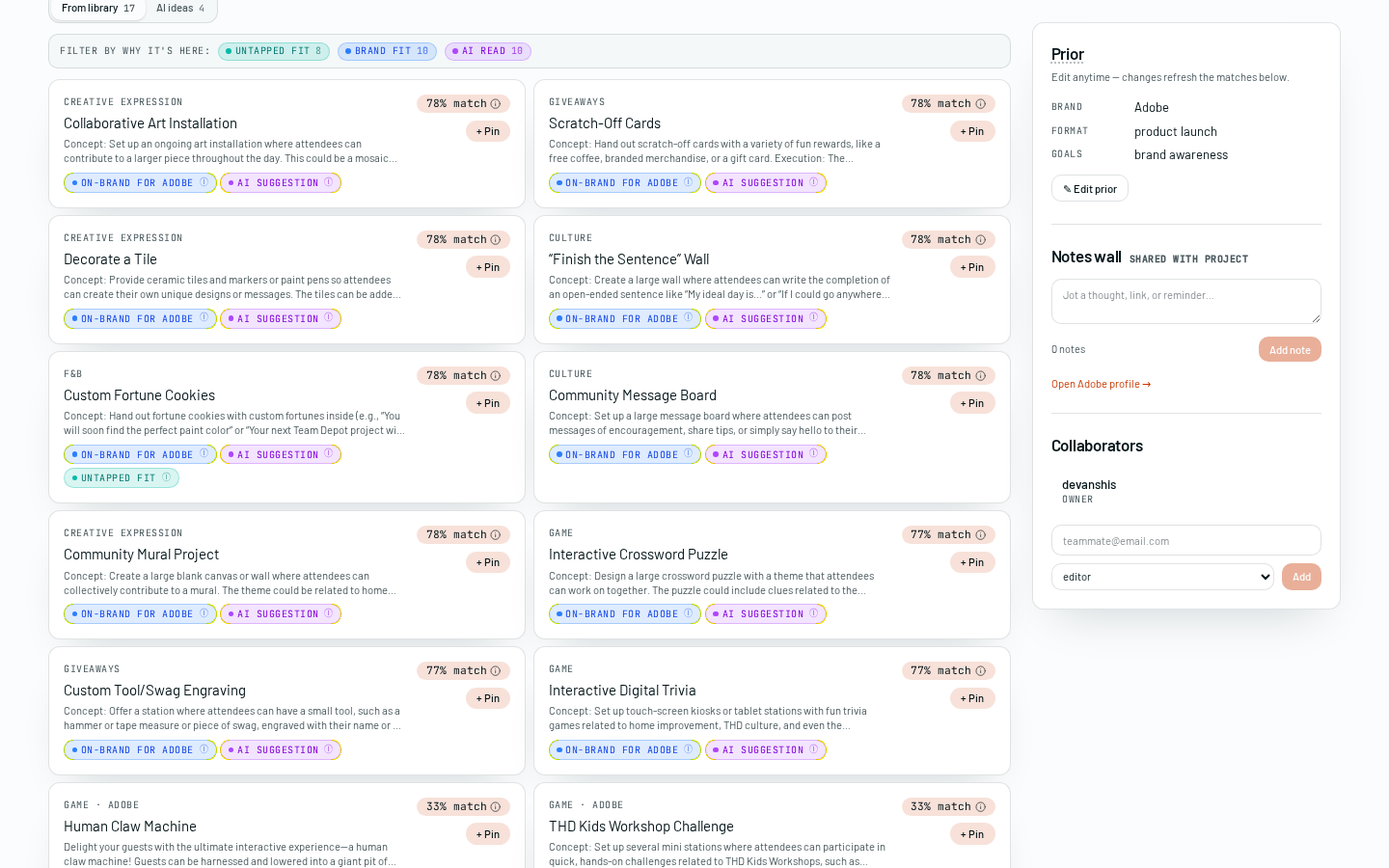
- AI ideas can be pinned even while pending. They land on the board with a purple 'AI inspo · pending review' ribbon.
- You cannot ★ Shortlist an AI idea until an admin approves it.
06 · Drawing board
Everything you pinned lives here. This is where you compare, drop, and promote to the shortlist.
- Click Compare on any two cards to see them side by side.
- Click ★ Shortlist on the ones you're taking to the client.
- Click Remove to drop anything that doesn't fit — you can re-pin later.
- The meta strip on each card shows who added it. Click the card for full details and sources.
- Pinning is scoped to the program. Two people on the same program share the same board.
- Removing from the board also removes it from the shortlist if it was there.
07 · Shortlist
This is the deck-ready list — what you're actually pitching. It feeds the pitch and produced timelines below.
Drag cards to reorder by pitch priority. Click any card to open the full detail. Actions live in the strip above the list.
- Anything on the shortlist gets stamped 'pitched' when you mark the program pitched — including AI ideas awaiting approval.
08 · Mark as pitched
Click Mark as pitched the moment the deck goes to the client. This flips the program stage and stamps every shortlisted activation as pitched in the brand's history.
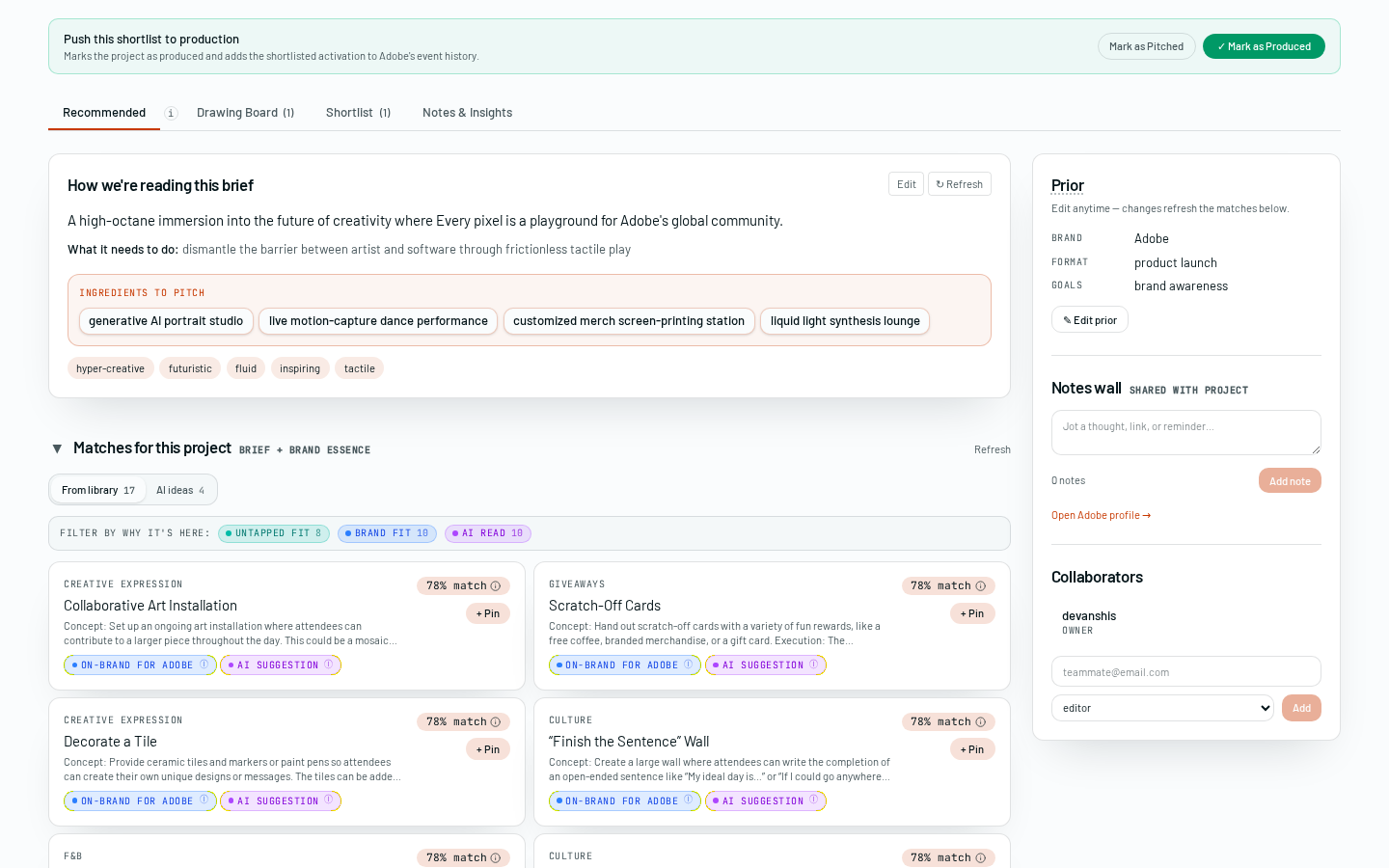
- This is not reversible from the UI. If you pitched the wrong set, edit the shortlist first, then mark.
- Marking pitched is what makes an activation show up in the brand's 'previously pitched' history.
09 · Mark as produced
After the event runs, hit ✓ Mark as produced. Every shortlisted activation is filed into the company's produced history and the program moves to the Feedback stage.
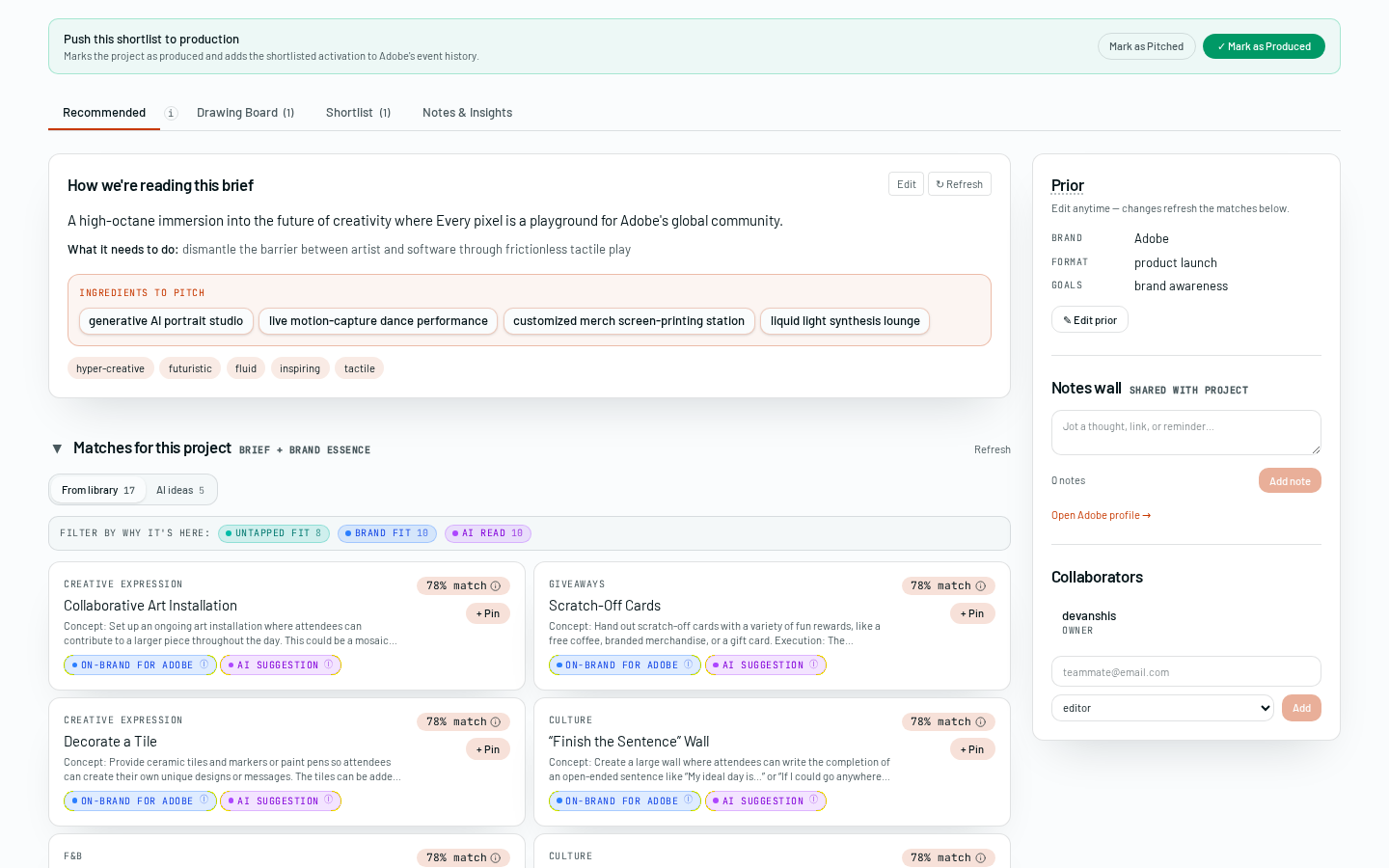
- Only mark produced for activations that actually ran, not the full pitch set. Trim the shortlist first if needed.
- AI-origin activations get promoted to real library rows only after admin approval AND production photos are attached.
10 · Retro & feedback
Once produced, the ☆ Retro / Feedback button appears. Rate each shortlisted activation — what worked, what didn't. Those reviews feed back into the AI so future matches for this brand get sharper.
Rate each activation 1–5 with a short note. Saving moves the program to Feedback / complete.
- Retros are per-program. If the same activation runs for two brands, rate it in both places.
11 · Notes
The AI brief summary lives here for everyone on the program, alongside your team's own notes. Notes save on blur and are visible to the whole program. The summary refreshes when the brief changes.
12 · All programs
Every program you're on, in one grid — client, dates, collaborators, and a stage timeline (Draft → Shortlist → Pitched → Scheduled → Produced → Feedback). Search matches name and client.

13 · Browse the library
The Browse page is the full activation library outside of any program. Use it to explore what's been done.
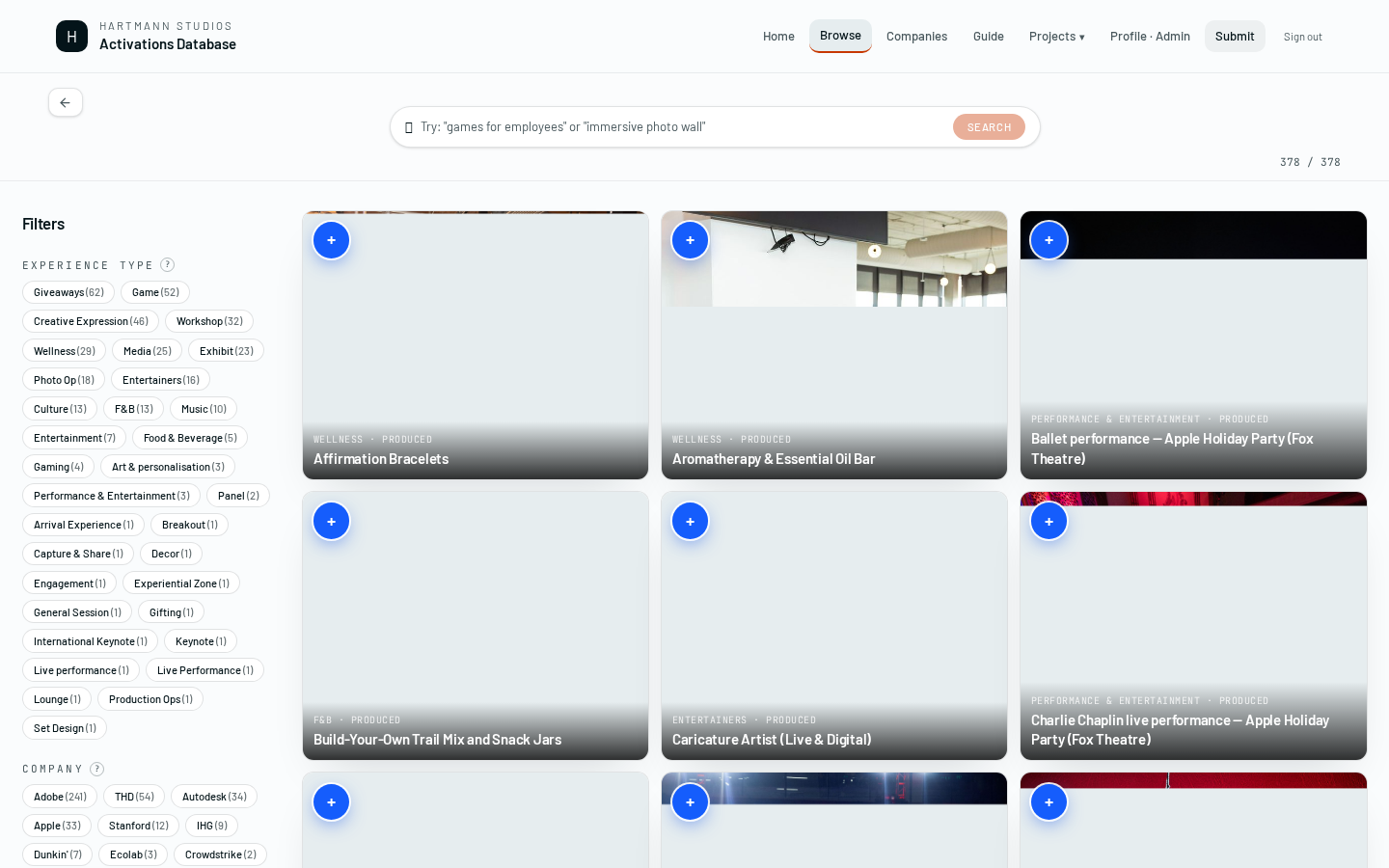
Search matches title, client, city, and description; filters on the left cover company, experience type, year, and city. With no search, activations with images sort to the top — with a search, best-match wins. The blue quick-add button submits a new record.
- Only approved records show here. Pending AI ideas never appear in Browse.
- The URL updates as you filter — you can bookmark or share a filtered view.
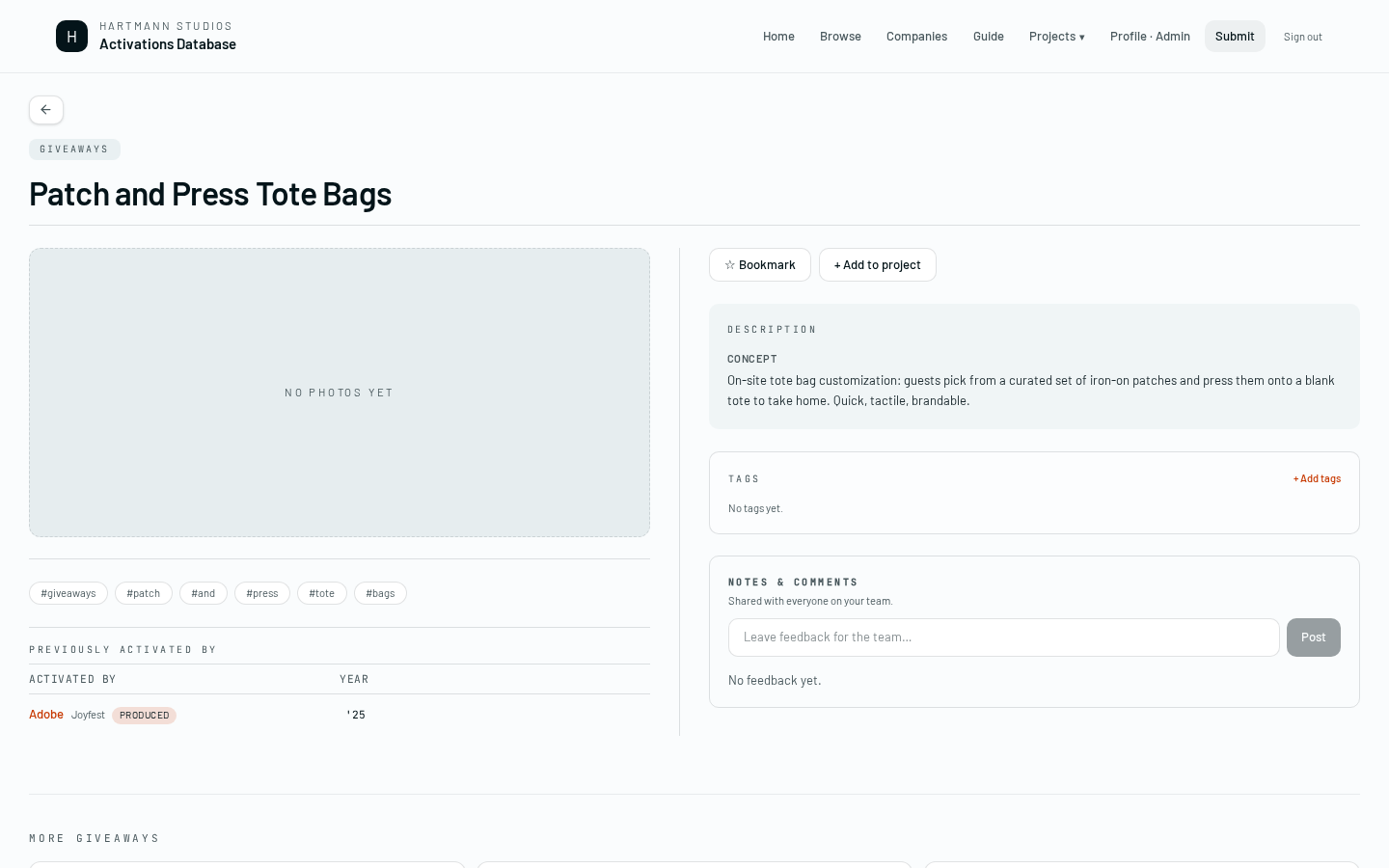
14 · Activation detail
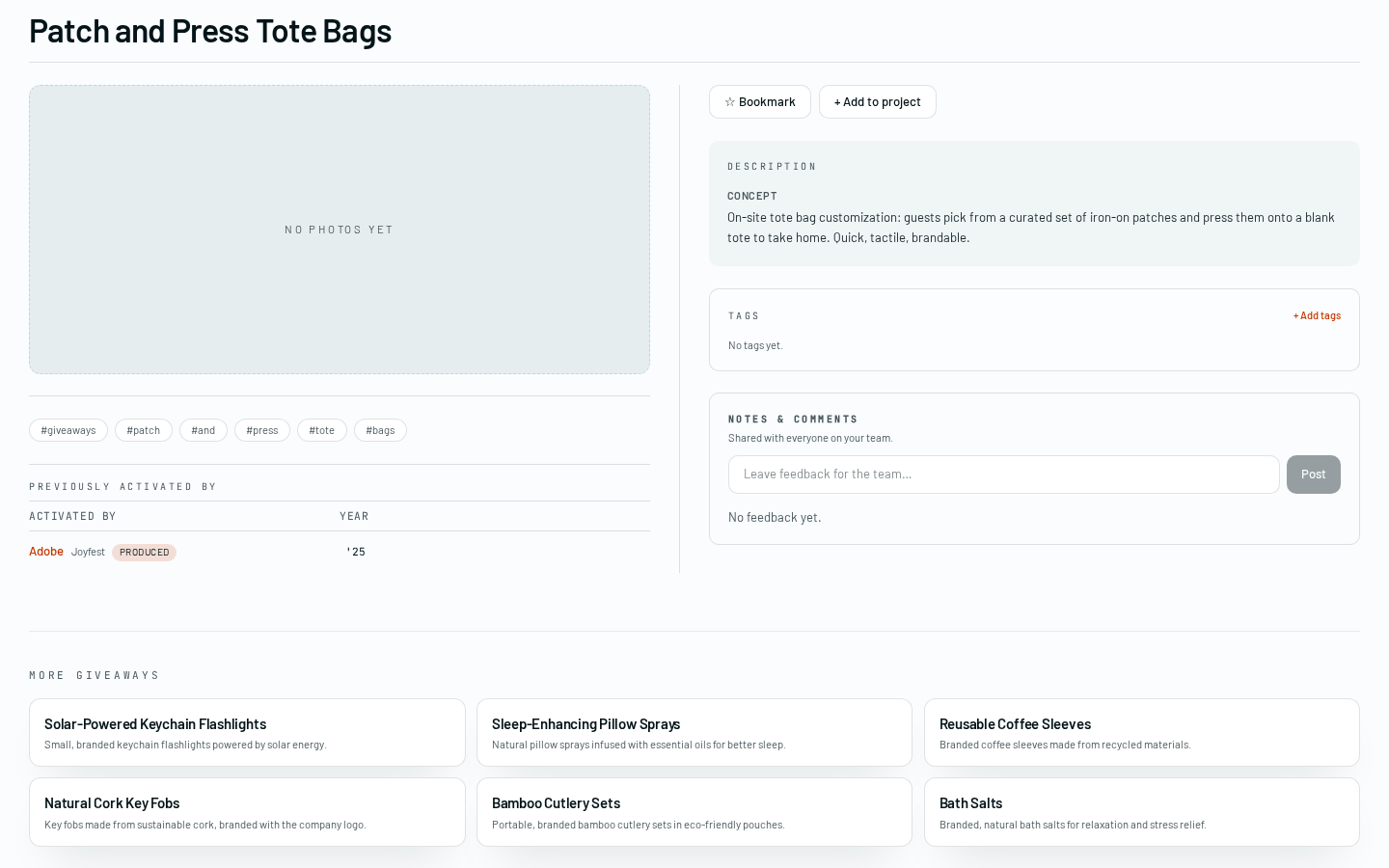
Everything we know about one activation: hero image and carousel, description, experience type, tags, and sources (AI-origin records list their citations here). Pin and shortlist buttons sit top-right.
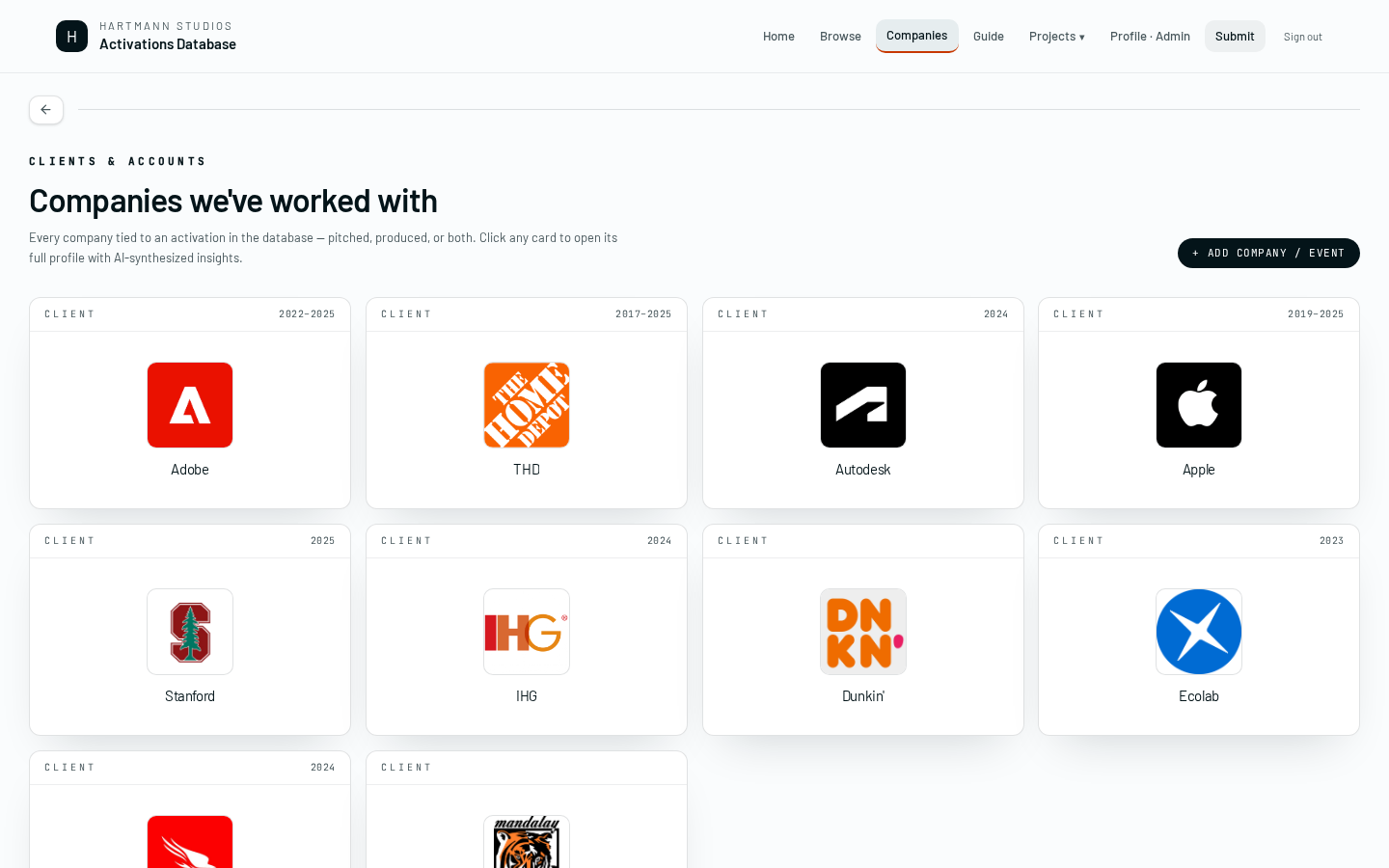
15 · Companies index
Every brand tied to an activation, pitched or produced. Click a logo to open the profile, or use + Add company to seed a brand before an activation exists.
16 · Company profile
Three tabs in one panel: Essence (keywords + vibes computed from every activation for this brand), AI insights (planning intel synthesized for the team), and Brand profile (the basics). Swipe or click to move between them.
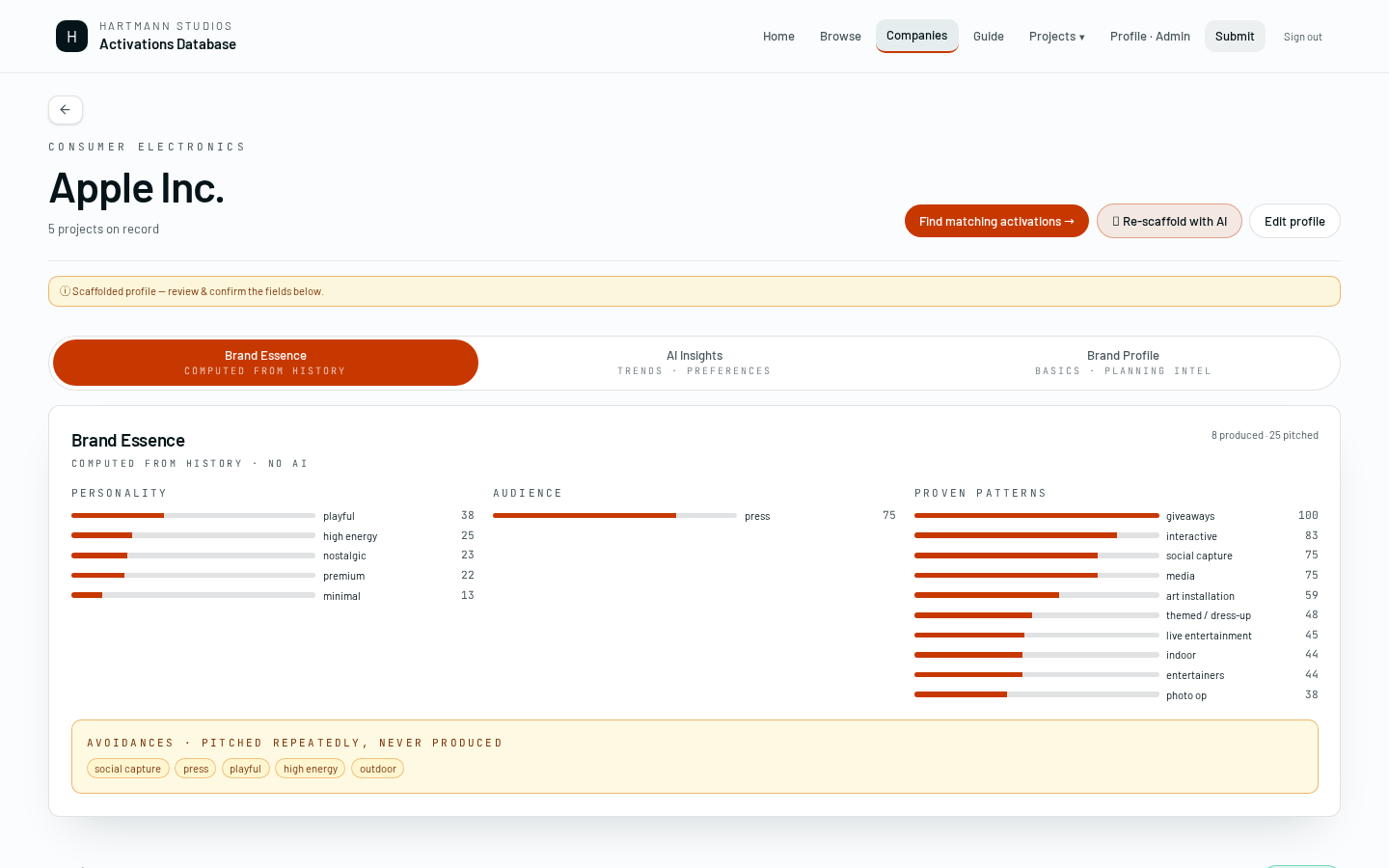
- Essence is derived — you can't edit it directly. Edit the underlying activations or brand profile and it recomputes.
- AI insights use the AI budget. See section 33.
17 · Company history
Every program we've done for this brand, grouped by year. Click into any one to see the activations we ran and why they worked.
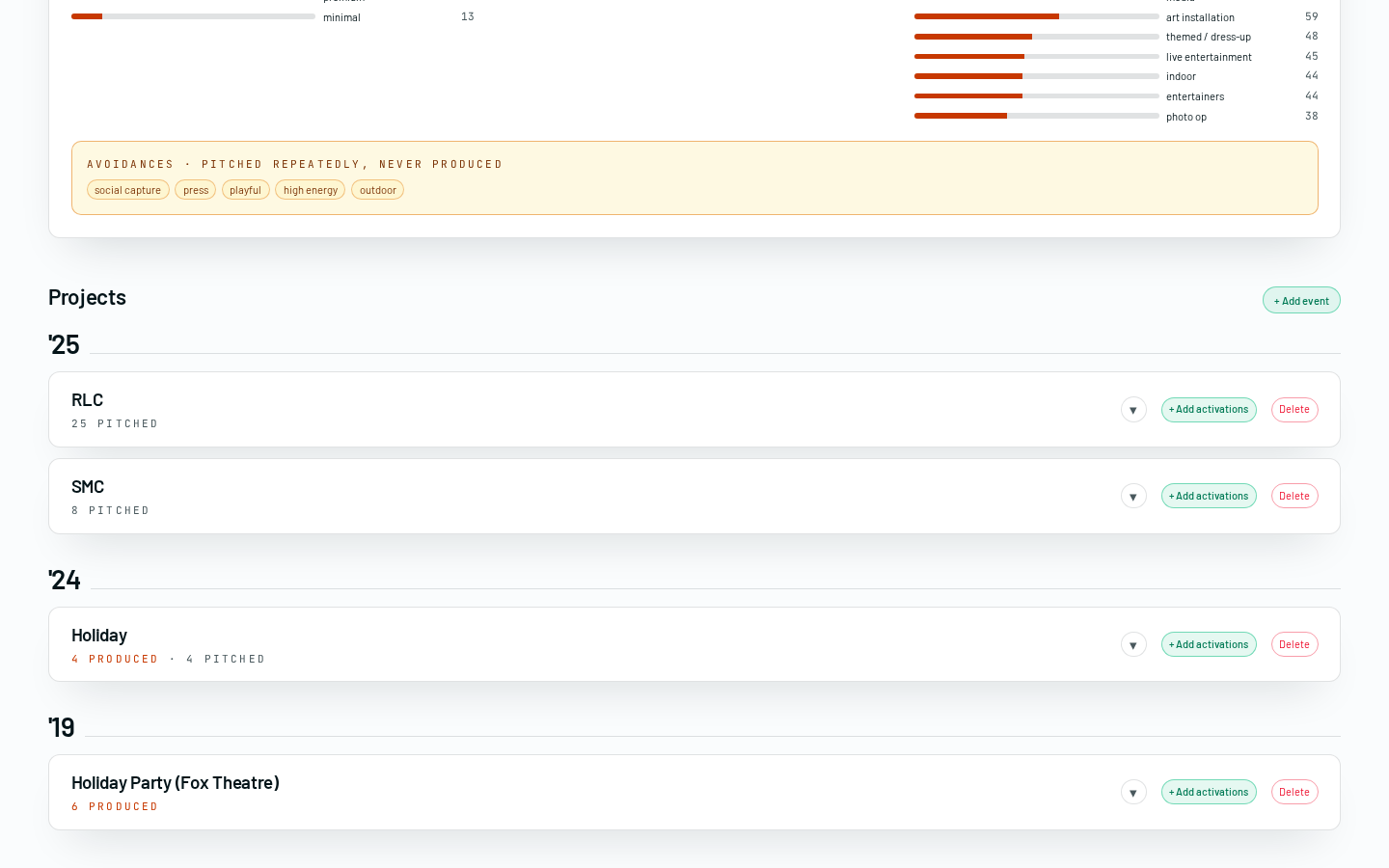
- History is stage-aware: 'Previously pitched' and 'Previously produced' are separate lists.
- Location matters — see the location-variant rule in section 35.
18 · Submit an activation
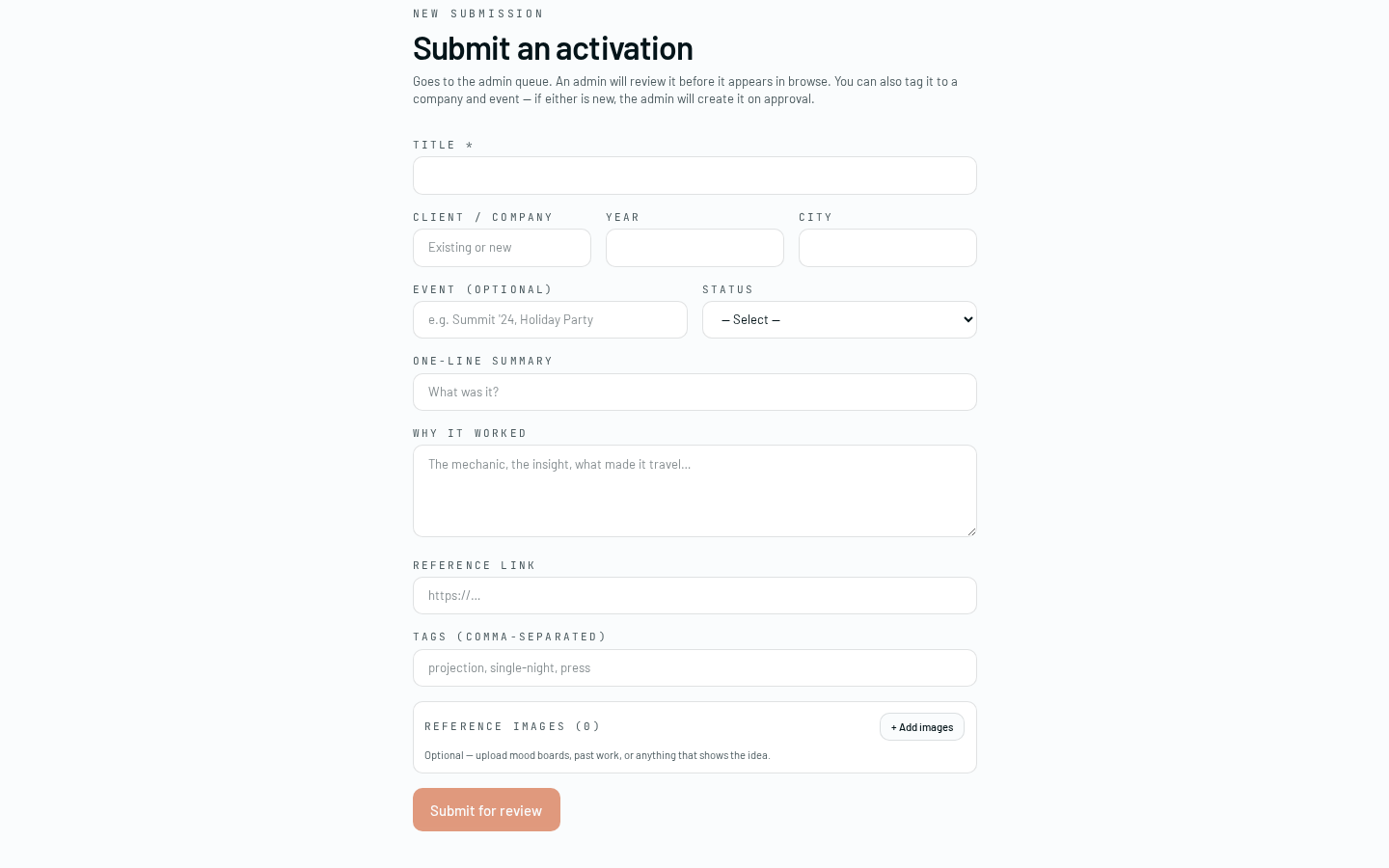
The Submit button in the header opens the submission form from any page. Use it to capture a fresh idea or a real event.
Fill in title, client, year, city, and why it worked, add any images, and submit. It joins the library once an admin approves.
- Submissions are visible to admins only until approved.
- The 'why it worked' field is what powers matching for this record — make it substantive.
19 · Add a past event
On a company page, the + Add past event wizard backfills history in bulk — event name, year, city, then each activation that ran (and optionally a company-logo URL). It hits the same admin review queue as regular submissions.
20 · Activation images
Open any activation you own (or admin) and use the image manager — drag to add, drag to reorder, first image is the hero.
- Only admins and the original submitter can edit images on an approved record.
- Files over 5MB are rejected — compress first.
21 · AI ideas lifecycle
The full lifecycle of an AI-generated idea, from generation to real library record.
- Idea appears on the Recommended tab (AI ideas sub-tab), dark card.
- You + Pin it. It goes to the drawing board with a pending ribbon.
- An admin reviews it in the admin queue. Approve or reject.
- If approved: card unlocks ★ Shortlist. Activation joins the library once photos are attached post-production.
- If rejected: card shows a red note. Remove it from the board.
- AI ideas never appear in Browse until approved AND produced.
- The 'AI inspo' chip stays on approved AI-origin records forever, so producers know where the idea came from.
22 · Sign up & approval
Anyone can create an account. New signups land on the pending screen until an admin approves them.
- Go to /auth, toggle to Create an account.
- Set an email and password. No email confirmation required.
- You land on the pending screen. Wait for an admin to approve.
- Once approved, hit Check again and you're in.
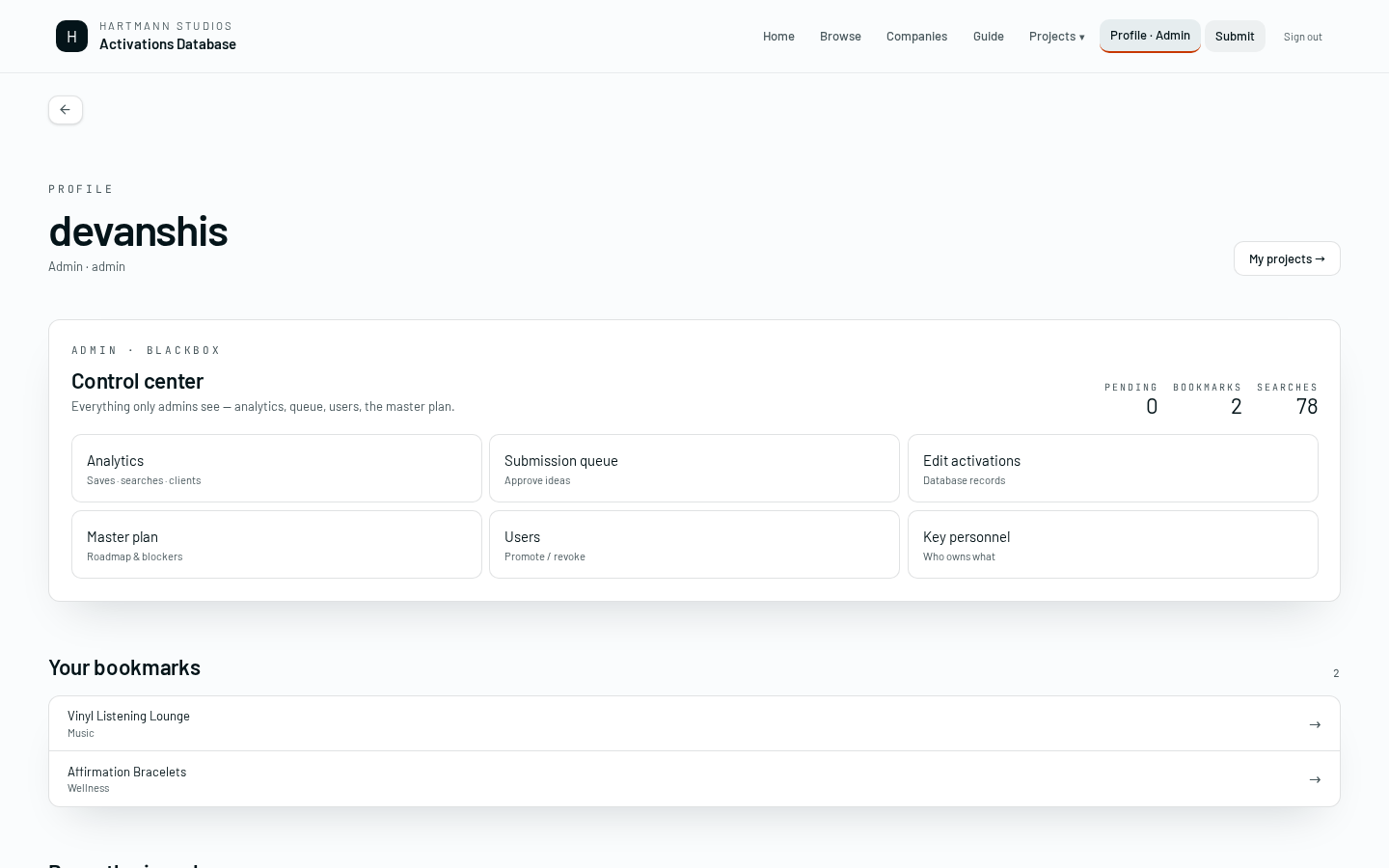
23 · Your profile
Your profile page holds Bookmarks (activations you starred from a detail page), Folders (your own groupings for later), and Recently viewed (auto, latest 20).
24 · Sign out & password reset
Sign out lives at the far right of the header. For a password reset, use Forgot password on the sign-in page and follow the email link.
25 · How matches are scored
Every recommended card gets a score from three signals combined:
- Semantic — cosine similarity between the brief embedding and the activation embedding.
- Brand history — produced ≫ pitched ≫ never. Recent weighted more heavily.
- Essence & rules — vibe tags, experience type, do-not list, budget band.
The signal chip on each card shows which of these was strongest. Hover to see the full breakdown.
Under the hood
Weights live in src/lib/knowledge/match-scoring.md. Change them there and the scorer picks up on the next request.
26 · Pending vs approved
Two states for AI ideas, and they behave differently.
- Pending — pinnable, shows on the board with a purple ribbon. Not searchable. Cannot be shortlisted.
- Approved — full activation row. Appears in Browse. Shortlistable. Keeps an 'AI inspo' chip forever.
- Rejected — red note badge. Remove from the board.
27 · Location-variant rule
Repeat activations at a new location are valid pitches. When an idea has been pitched or produced 2+ times for a brand, the recommender still surfaces it — with a suggestion to run it in a different city.
- This is why you'll sometimes see 'we did this last year' show up as a match. Read the location before rejecting.
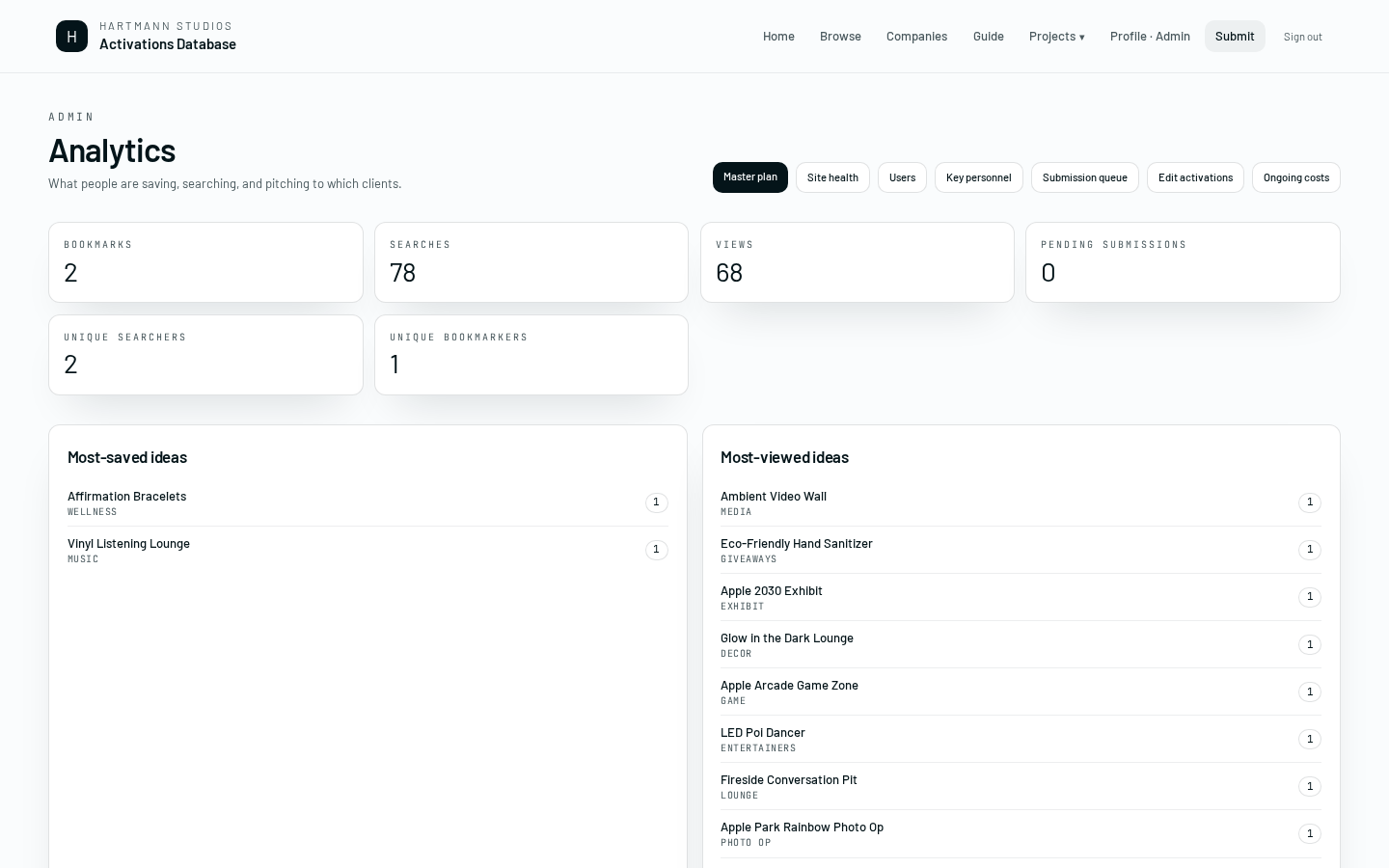
A1 · Admin overview
The Admin overview lists every admin surface: queue, activations, users, costs, health, people, plan. If you're not an admin you can skip this whole section.
A2 · Queue
The submissions queue. Approve, reject, or edit incoming activations and AI ideas before they hit the library.
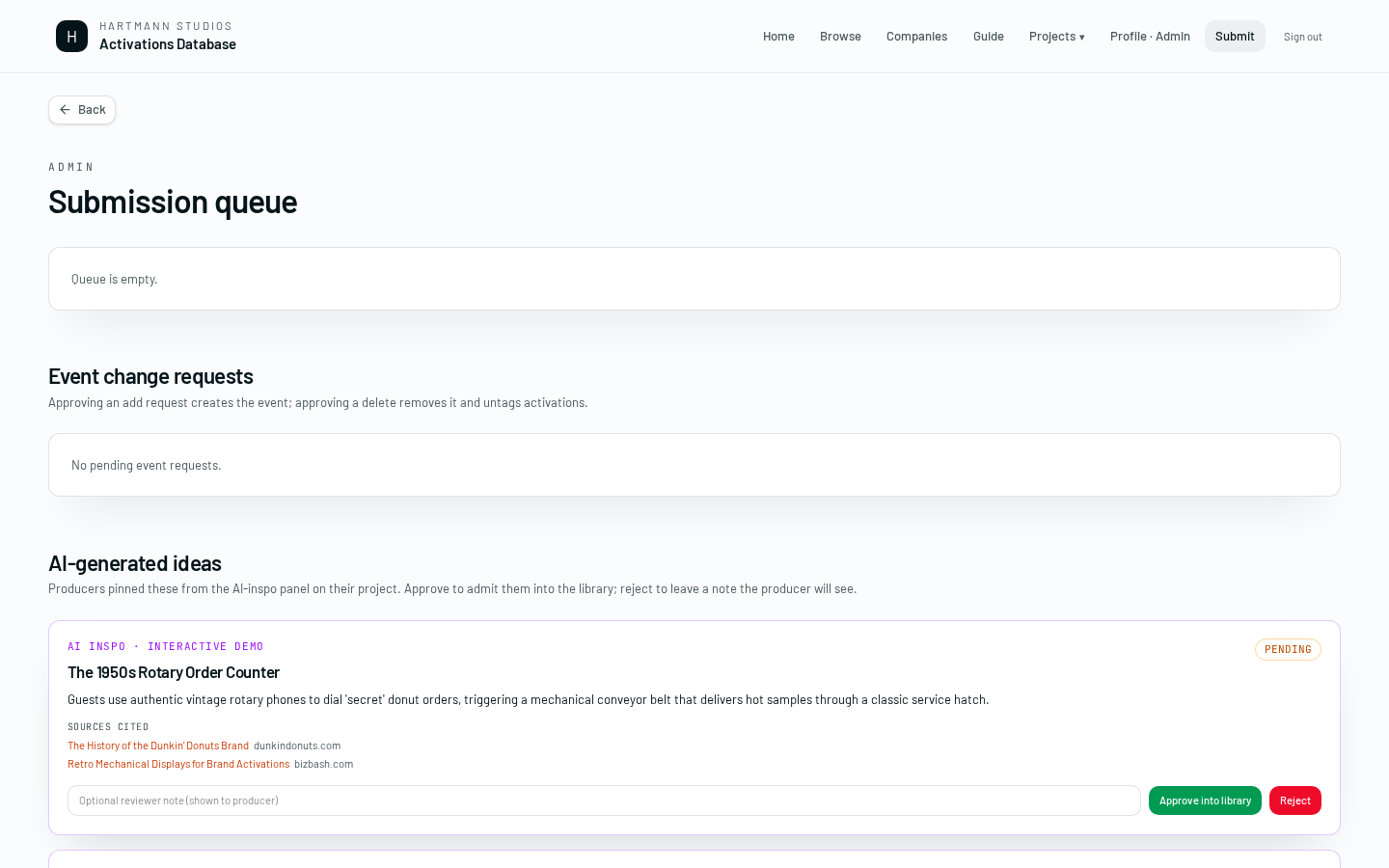
- Approving an AI idea copies its sources onto the resulting activation row. Check them.
- Rejecting doesn't delete — it flips status. You can re-approve later.
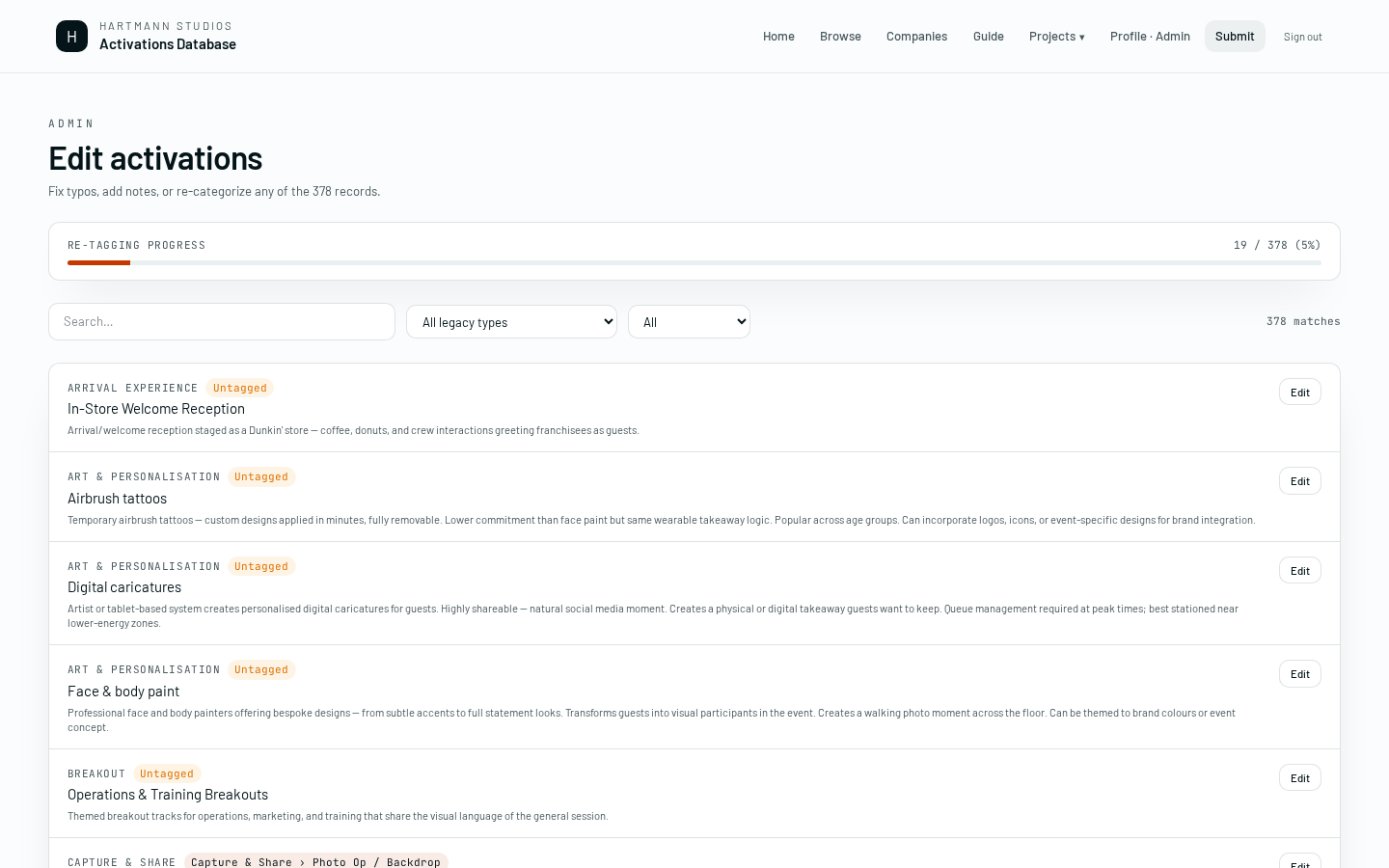
A3 · Activations
Library management. Search, edit, and delete any activation. Tag management lives here too.
A4 · Users
Approve pending signups, assign roles, and see who's active.
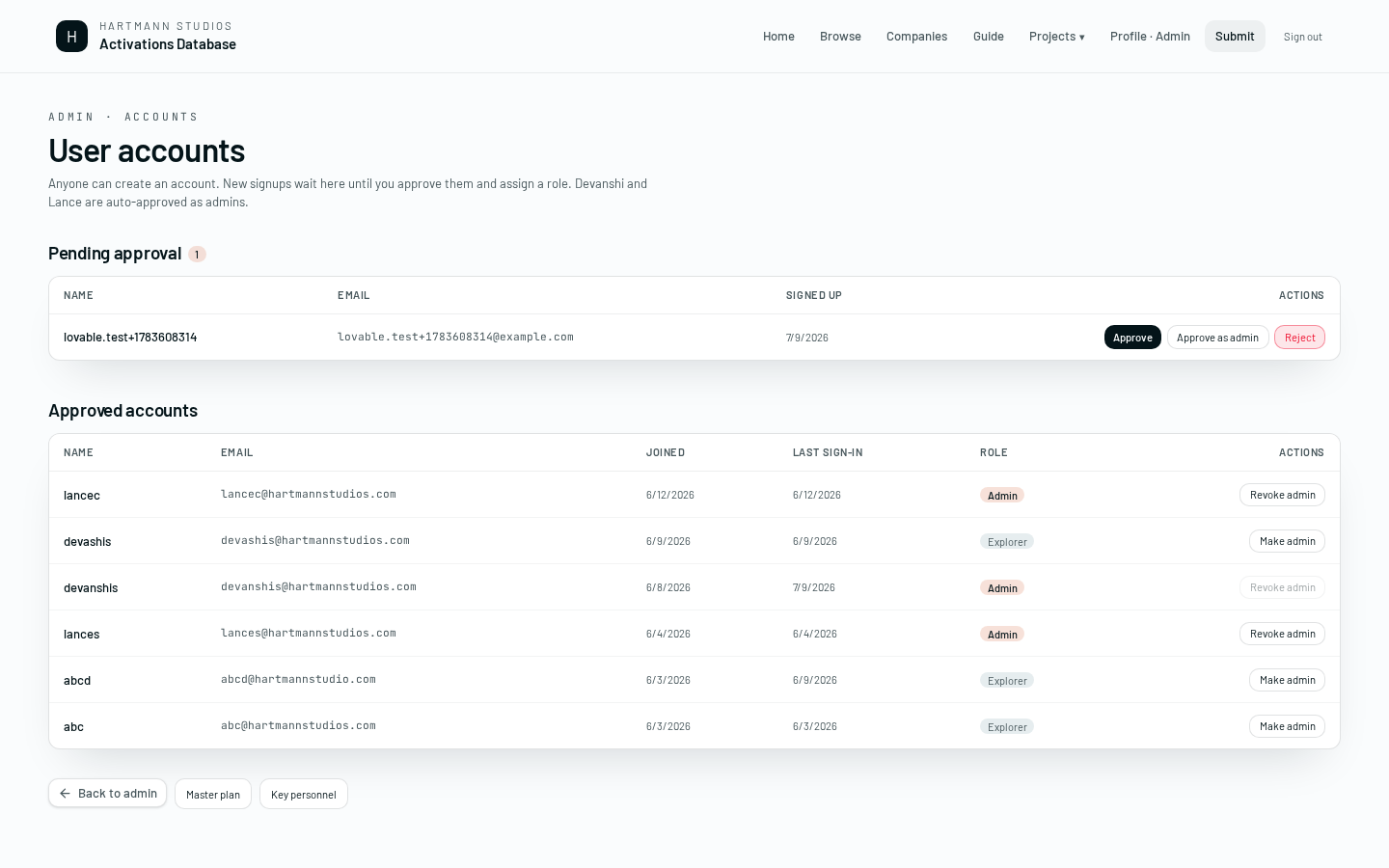
- Pending approval section at the top shows new signups.
- Approve makes them a regular user. Approve as admin grants admin role. Reject deletes the auth account.
- The main table lists all approved users with role controls.
- Devanshi and Lance are hard-coded auto-approve admins. You can't lock them out.
- Rejecting a user removes their auth record entirely. They can re-sign-up.
A5 · AI costs
Every AI call is logged. This page shows daily/monthly spend, per-model breakdown, and the current budget ceiling.
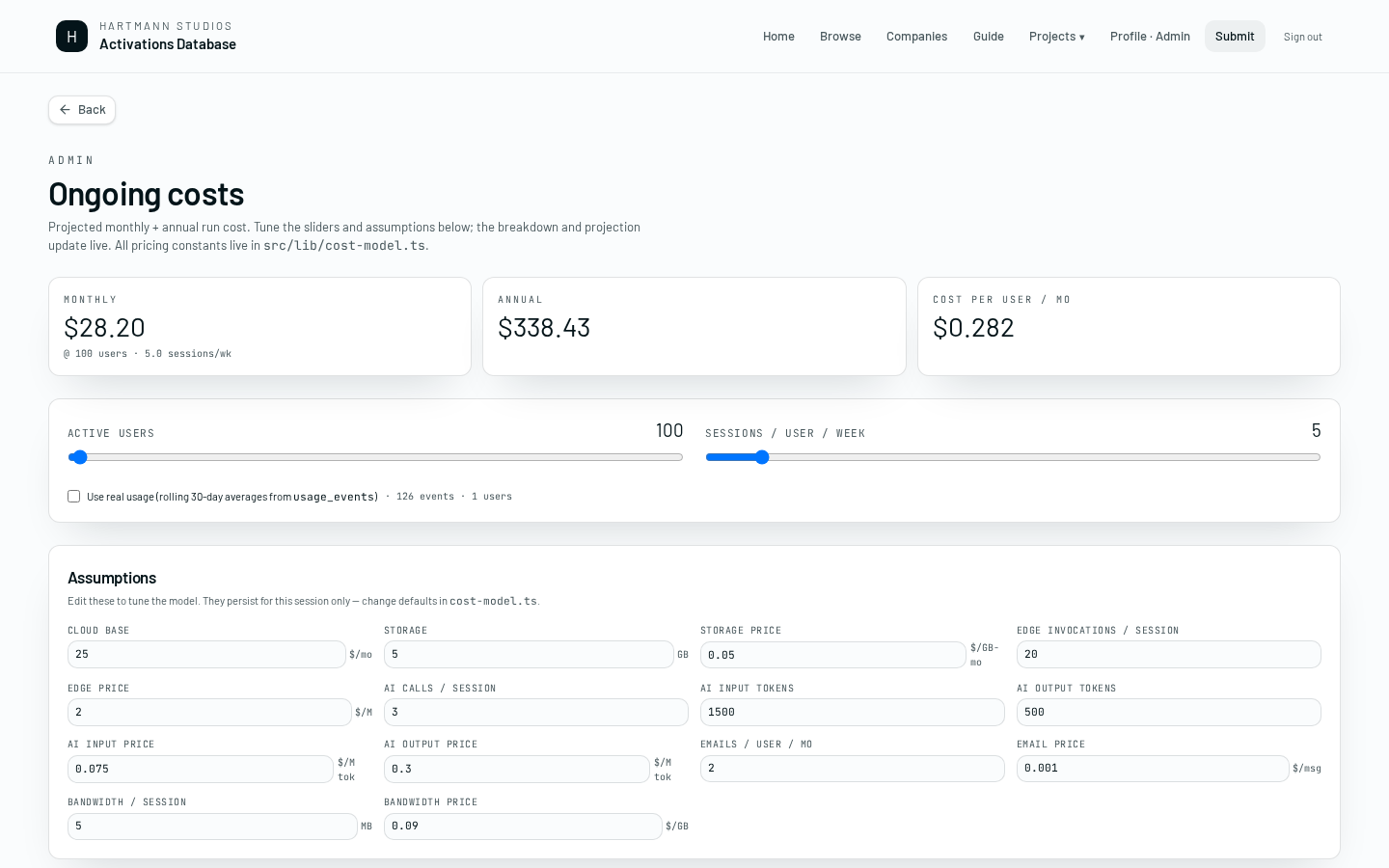
- Defaults: $5/day, $50/month. When either hits, hard_stop_mode kicks in and blocks non-batch calls.
- Preview cost before any bulk re-embed. It's the biggest cost source in this app.
A6 · AI budget
Every AI call — chat, embed, image — logs to ai_usage_events and counts against the daily and monthly ceilings in ai_budget.
- Defaults: $5/day and $50/month.
- When either hits,
hard_stop_mode = batch_onlykicks in and interactive calls fail cleanly. - Admins can raise the ceiling from the costs page.
- If a Regenerate button suddenly fails with 'budget exceeded', that's the ceiling — not a bug.
A7 · Health
Release verification. Mark migrations verified, check for RLS regressions, and monitor error rates.
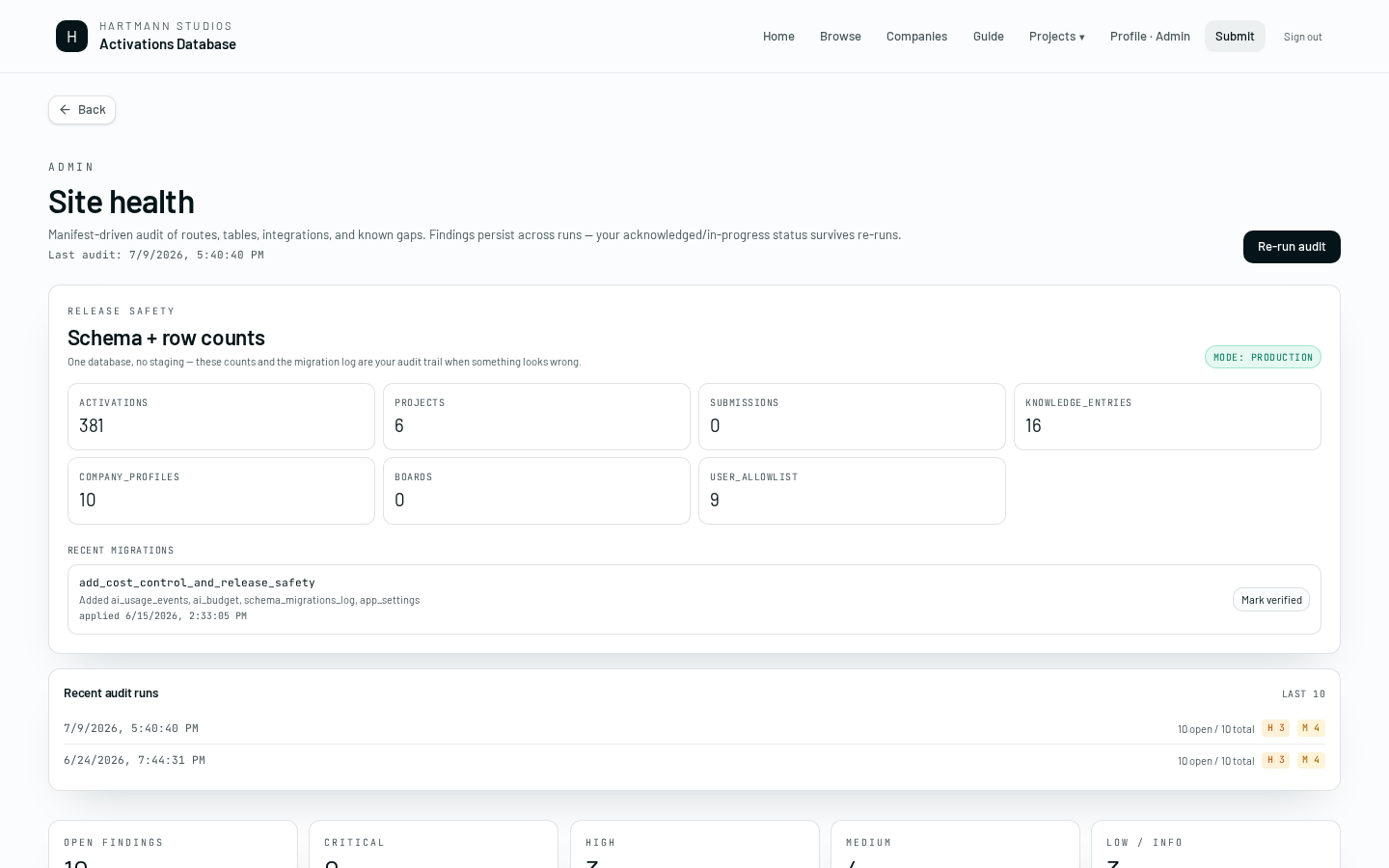
- Never publish same-day as a destructive migration without a 1h preview soak.
- The preview ribbon at the top of the app only shows in preview mode + admin. Regular users don't see it.
A8 · People & plan
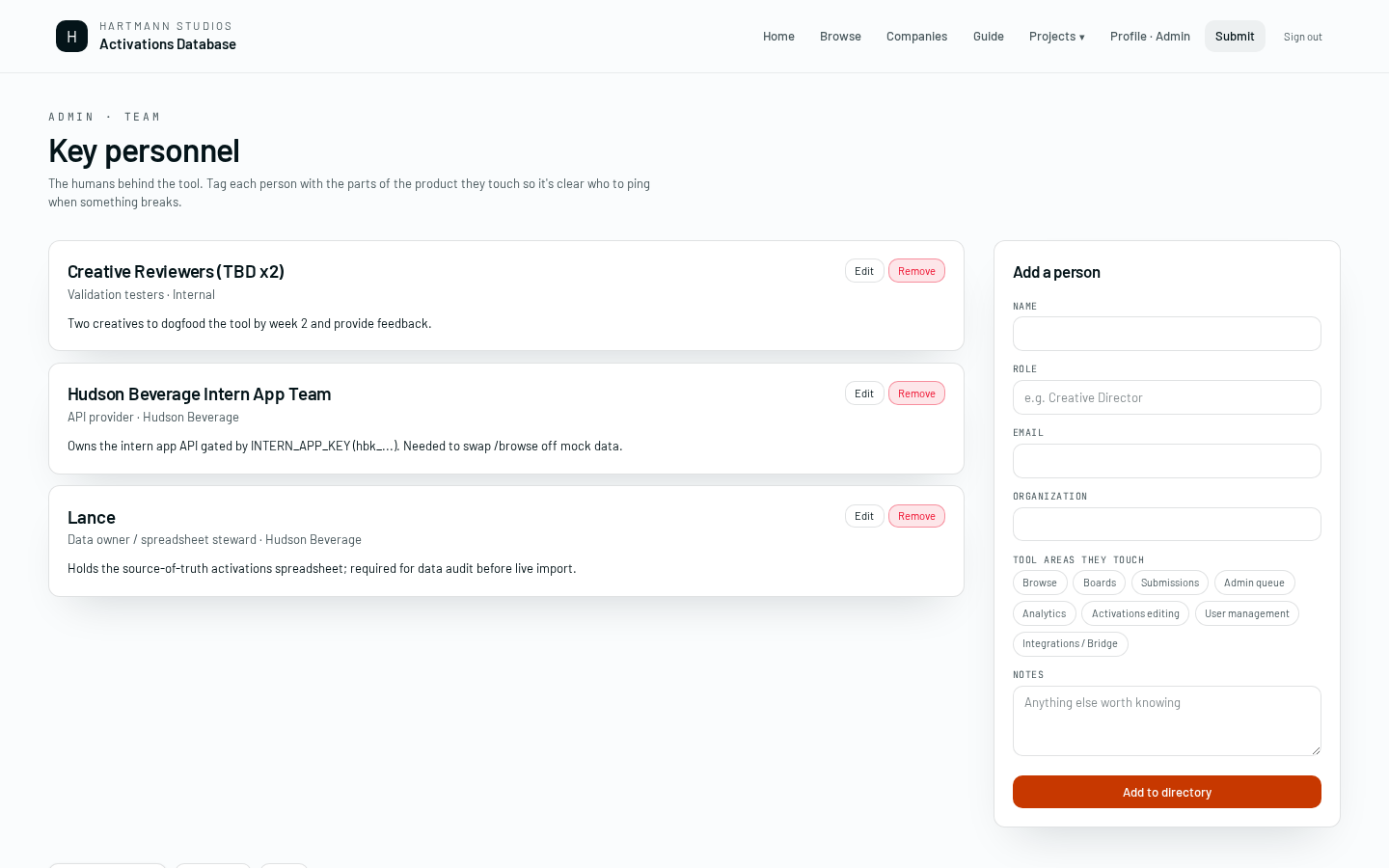
The People admin page lists Hartmann contacts tied to activations. The Plan admin page is the internal roadmap view — decisions, open questions, and release notes.